
Guide · Android
How to set up VPN on Android
Choose an app and follow the step-by-step guide. You will need a link, which you can get in the Telegram bot.
Choose an app
For Android we recommend INCY or Happ. If you have a choice, it’s best to start with INCY.
The screenshots and the Telegram bot are in Russian. Button names are given as they appear in each app’s English interface, and bot buttons are shown in Russian with an English translation. Buttons are in the same place in every language.
Connect using INCY
If the app is already installed, start from step 2.
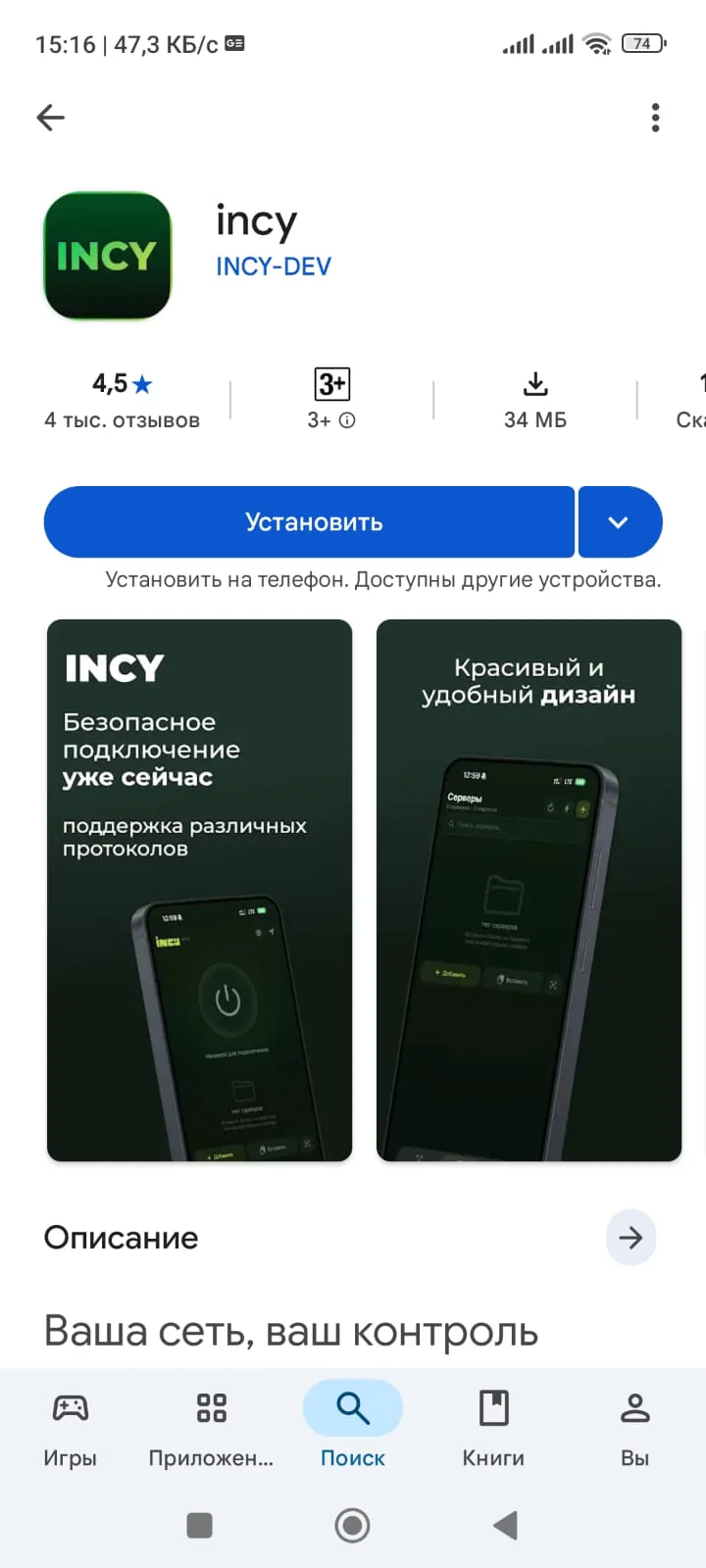
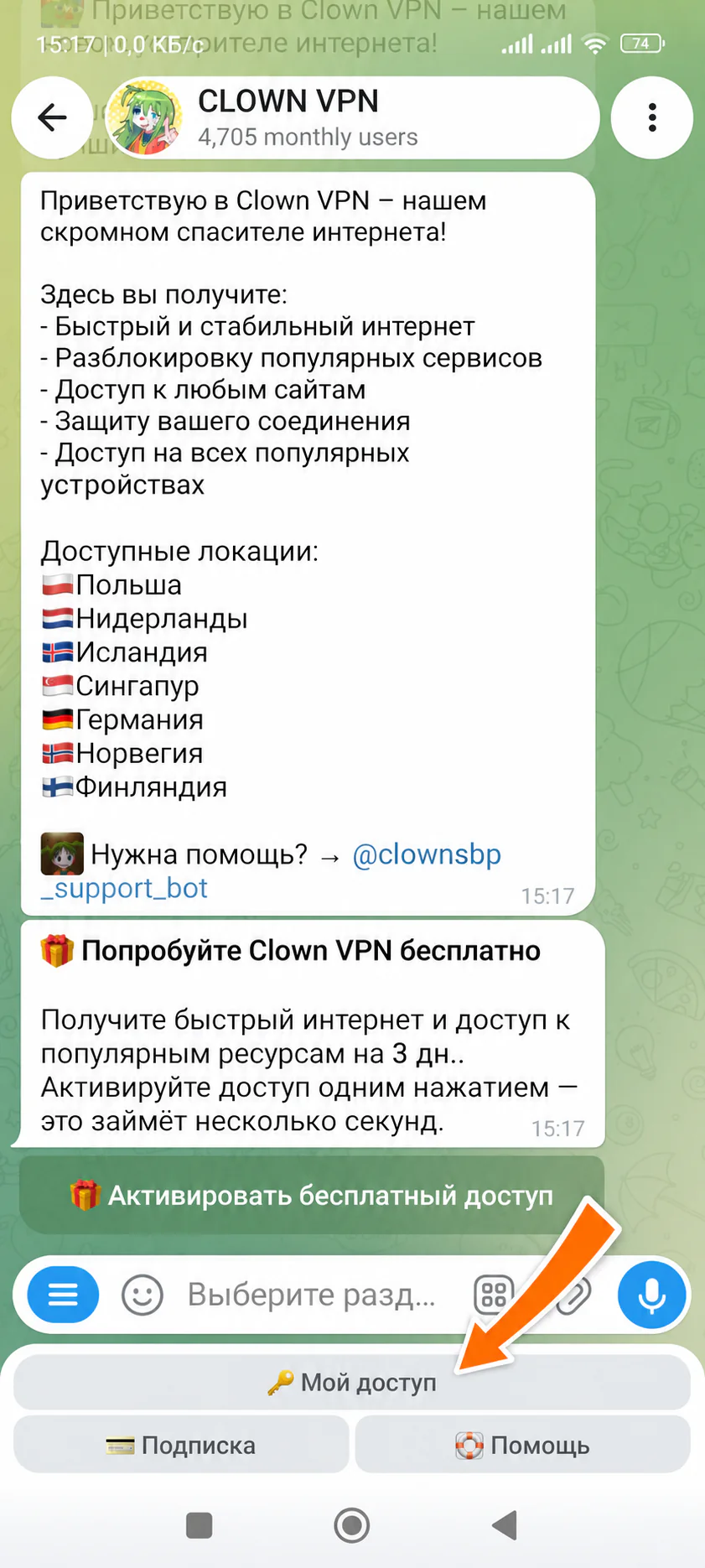
Click to enlarge Get your connection link
Open the bot @clown_sbp_bot and go to «🔑 Мой доступ» (My access).
Your connection link will be there.
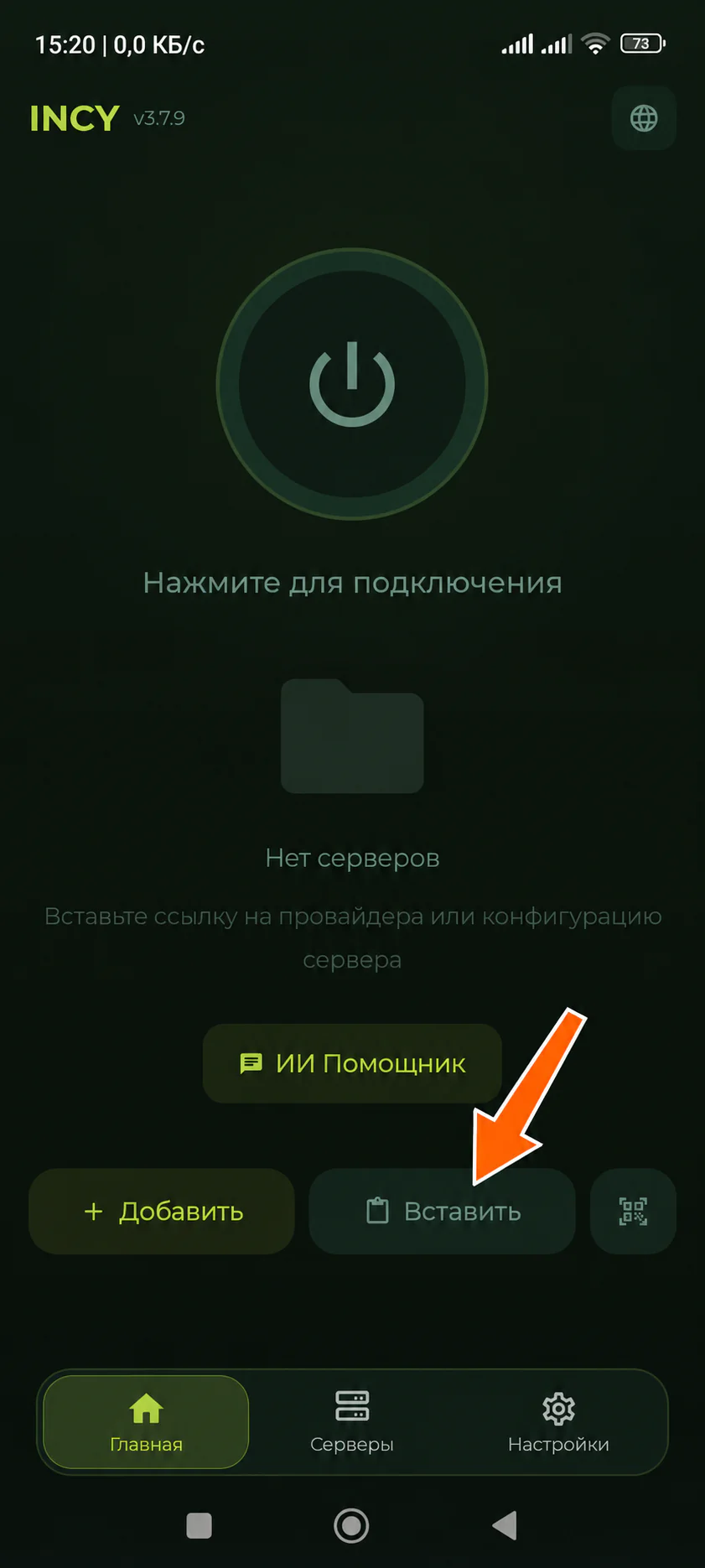
Click to enlarge Add the subscription to the app
Copy the link from the bot, then:
- open INCY;
- choose the option to add a subscription or import a link;
- paste your connection link.
After that, a list of available servers should appear in the app.
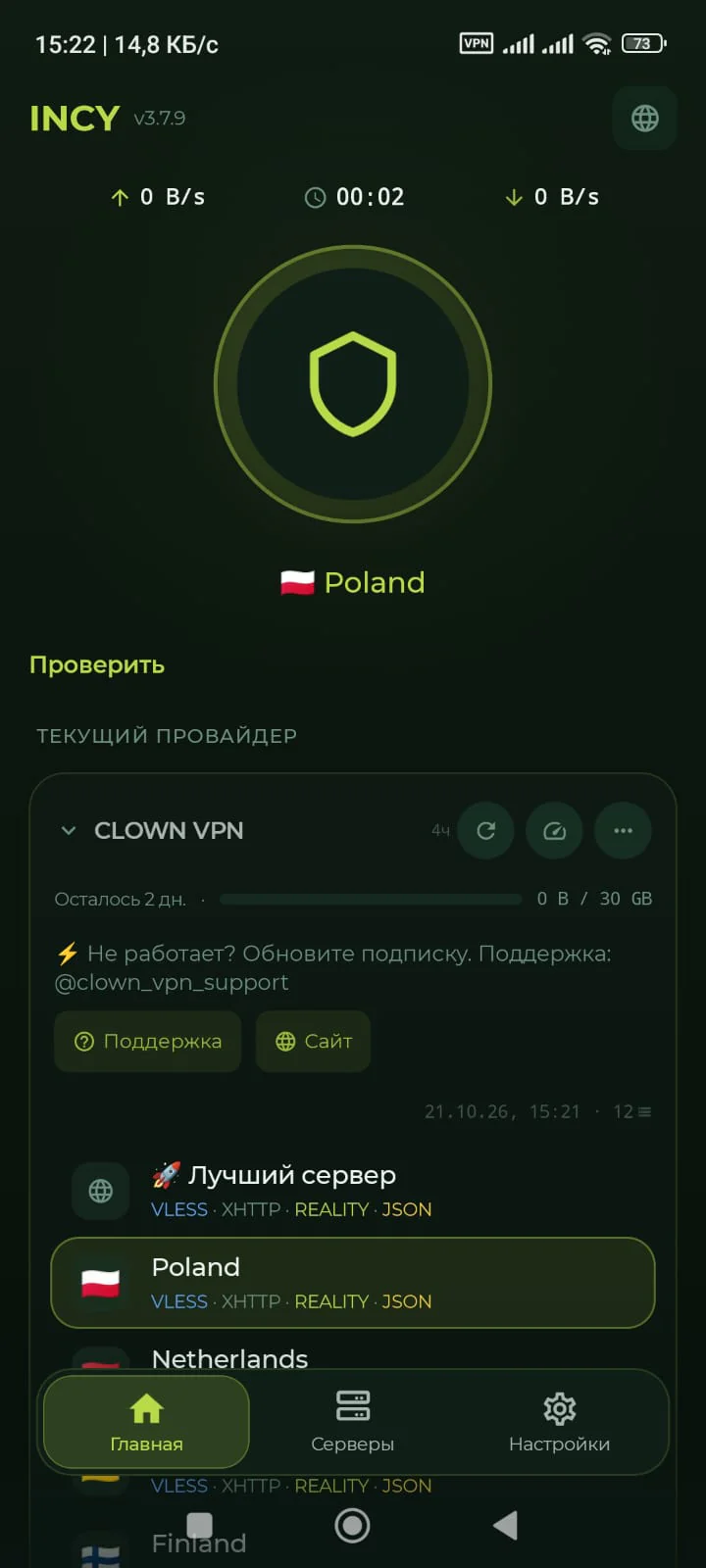
Click to enlarge Connect to a server
Choose the location you want and turn on the VPN.
If it doesn’t connect, first try updating the subscription in the app, then reconnect.
Click to enlarge
Having trouble connecting?
Update the subscription in the app. If that doesn’t help, contact support and tell us your device, app and internet provider or mobile carrier.
Connect using Happ
If the app is already installed, start from step 2.
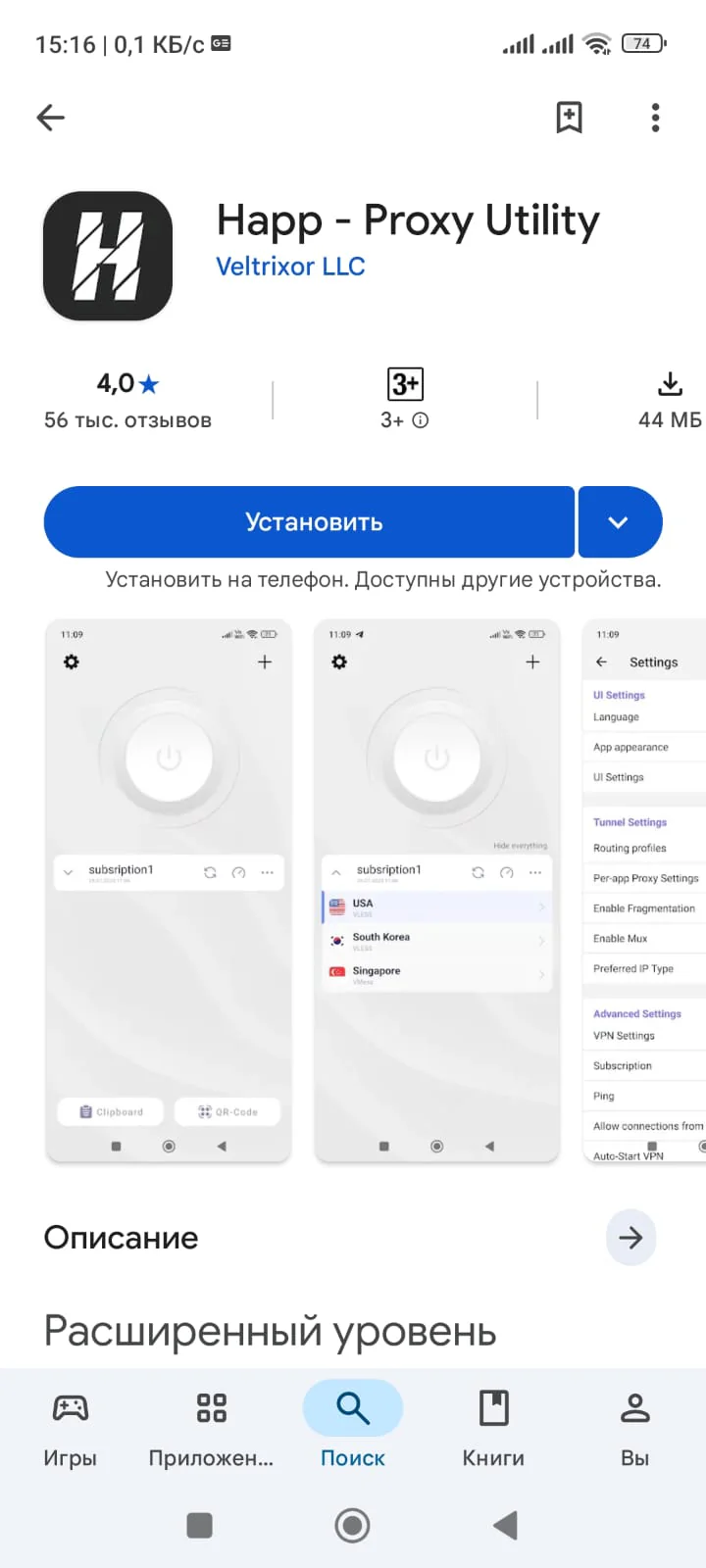
Click to enlarge Get your connection link
Open the bot @clown_sbp_bot and go to «🔑 Мой доступ» (My access).
Your connection link will be there.
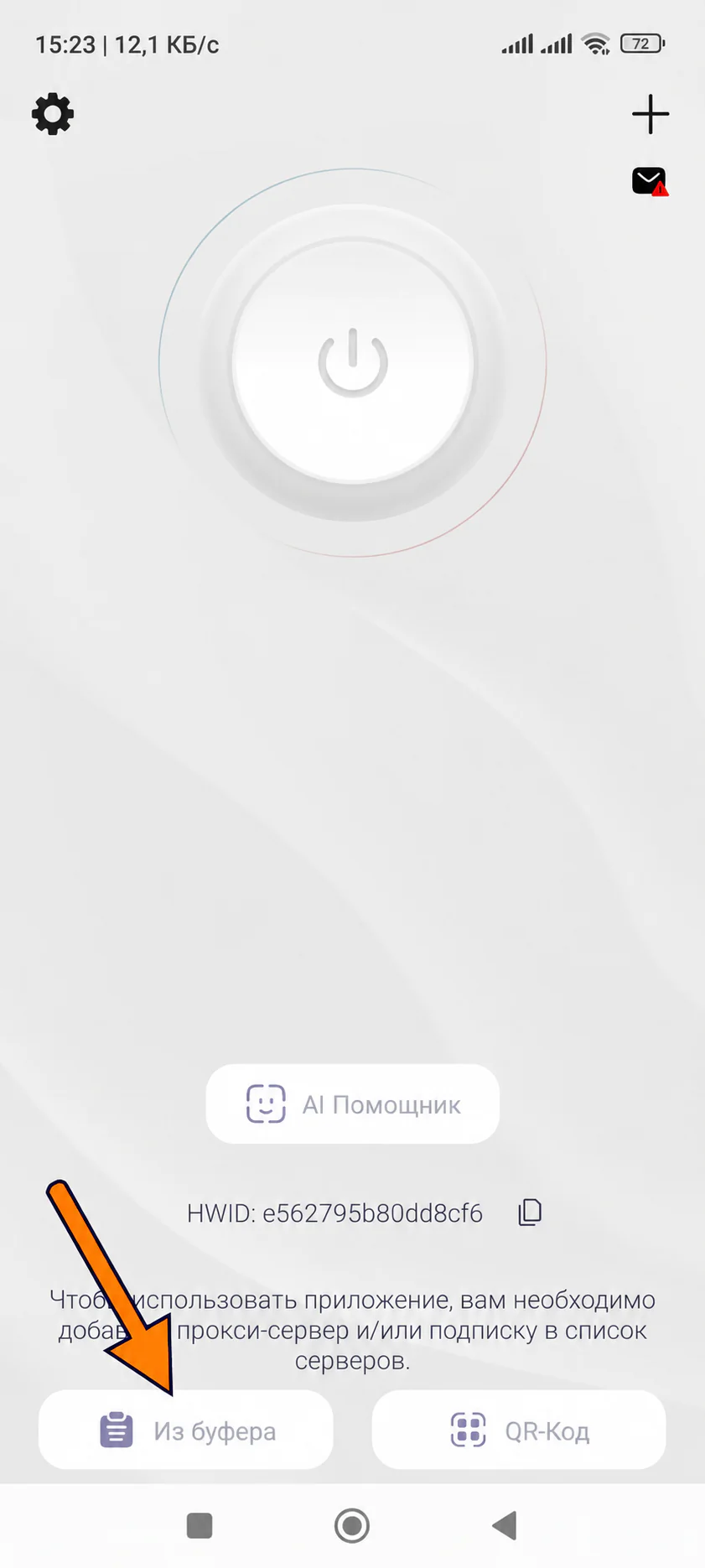
Click to enlarge Add the subscription to the app
Copy the link from the bot, then:
- open Happ;
- choose the option to add a subscription or import a link;
- paste your connection link.
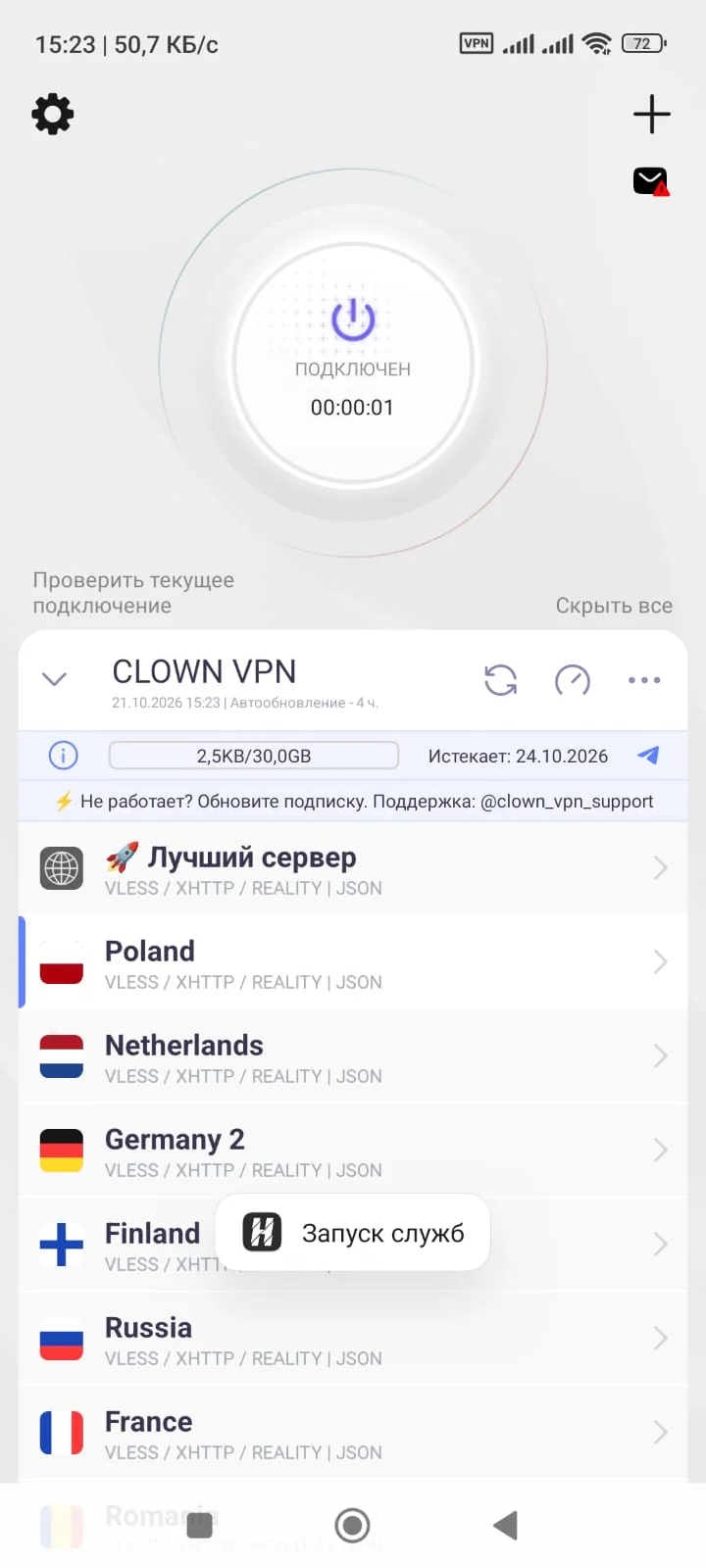
After that, a list of available servers should appear in the app.
Click to enlarge Connect to a server
Choose the location you want and turn on the VPN.
If it doesn’t connect, first try updating the subscription in the app, then reconnect.
Click to enlarge
Having trouble connecting?
Update the subscription in the app. If that doesn’t help, contact support and tell us your device, app and internet provider or mobile carrier.