
Guide · Windows
How to set up VPN on Windows
Install a suitable app, get a link in the Telegram bot and add it to the app. The screenshots show where to click at each step.
Choose an app
Choose Happ, Throne or INCY.
The screenshots and the Telegram bot are in Russian. Button names are given as they appear in each app’s English interface, and bot buttons are shown in Russian with an English translation. Buttons are in the same place in every language.
Connect using Happ
If the app is already installed, start from step 2.
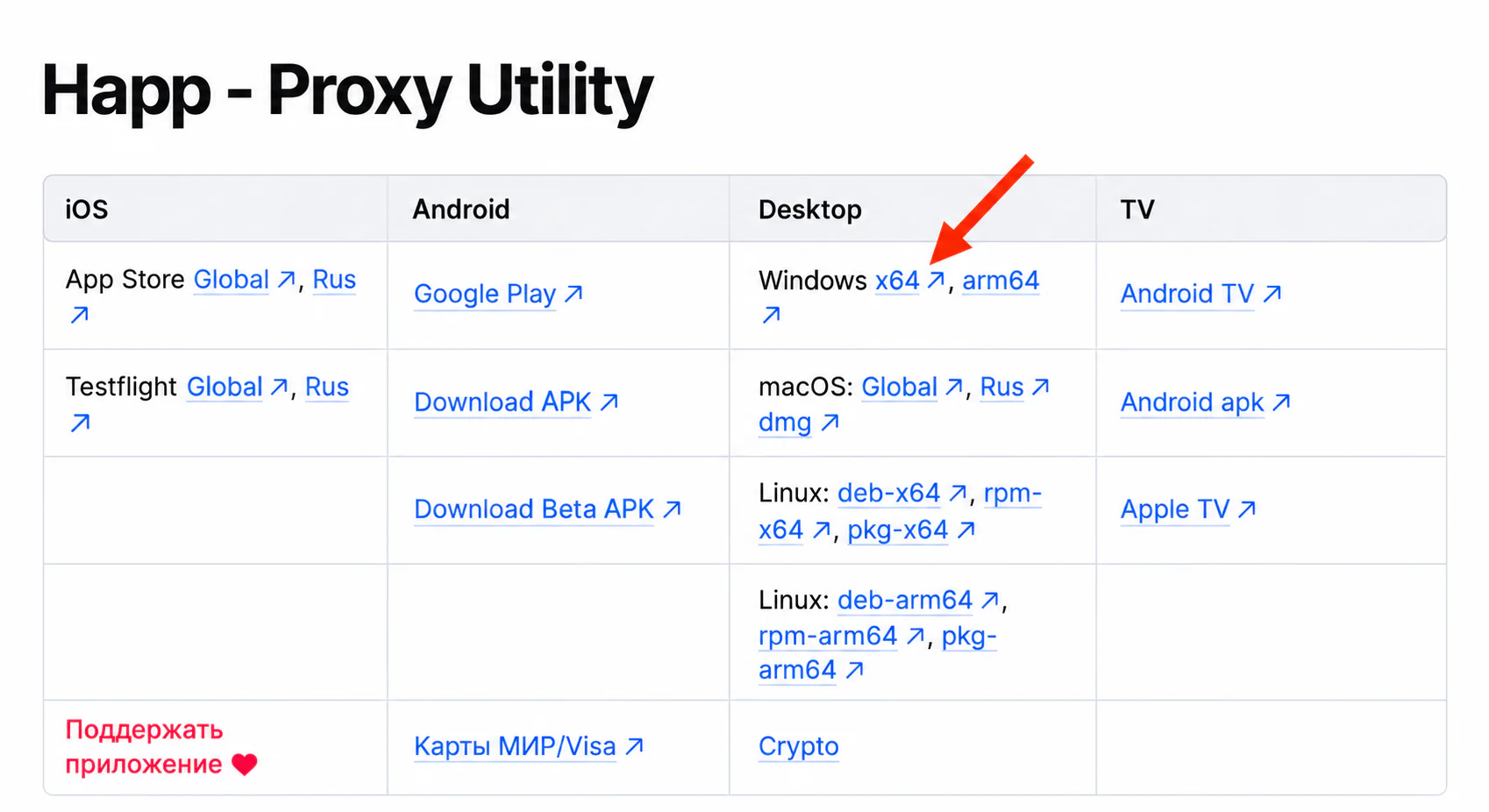
Install Happ on your computer
Download the Happ installer for Windows from the official website, run it and finish the installation.
Click to enlarge 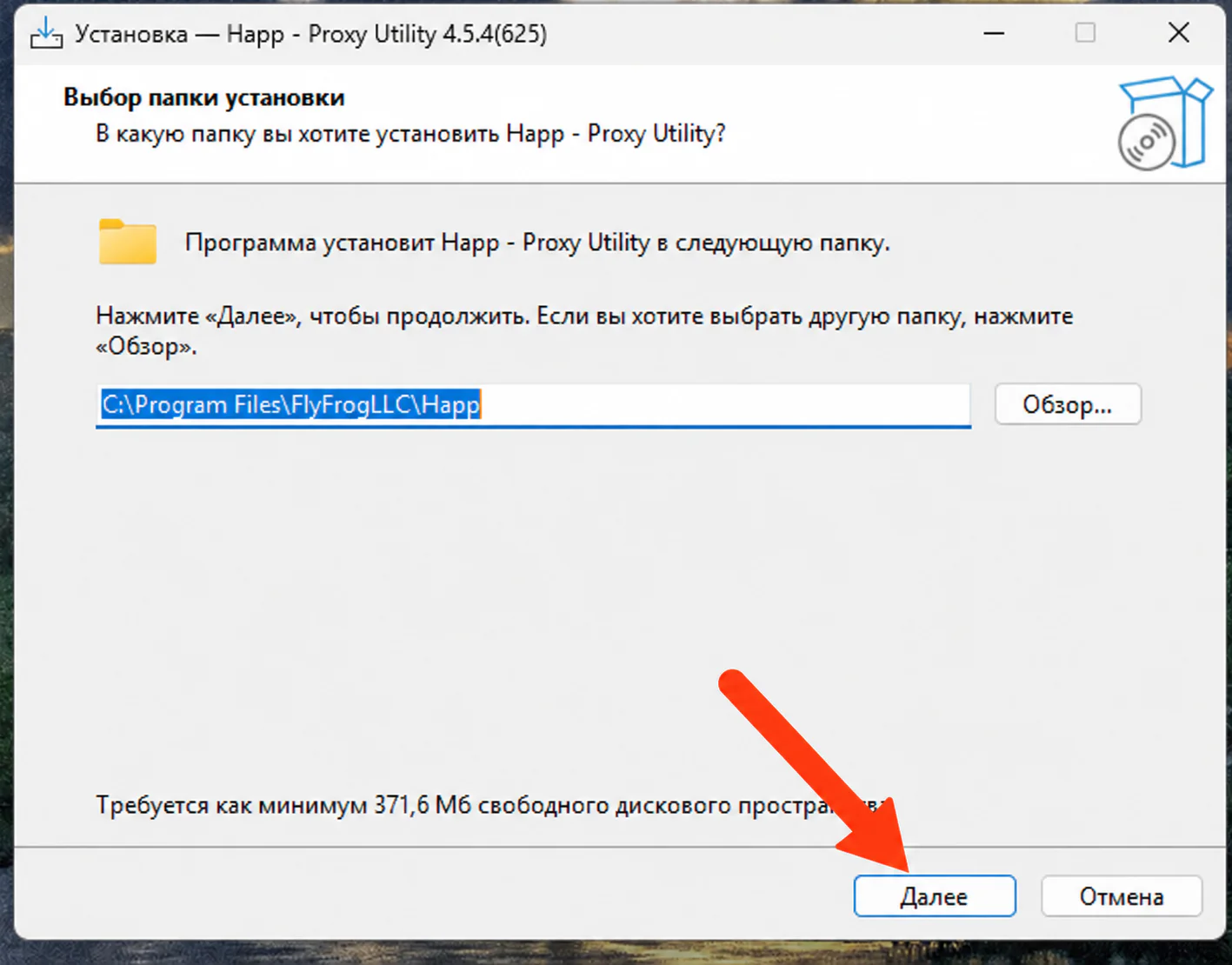
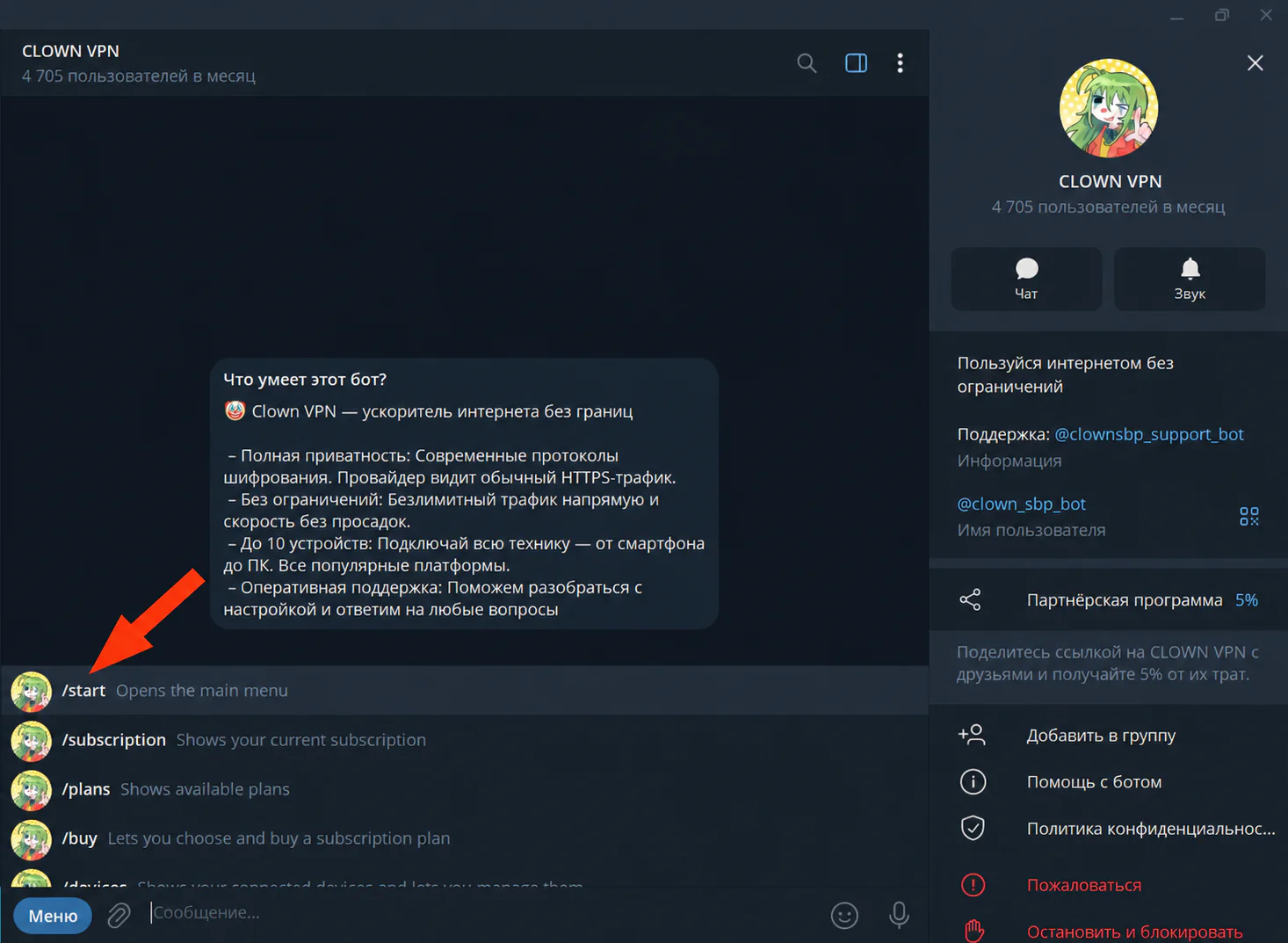
Click to enlarge Start the Telegram bot
Open the bot @clown_sbp_bot in Telegram and send the /start command.
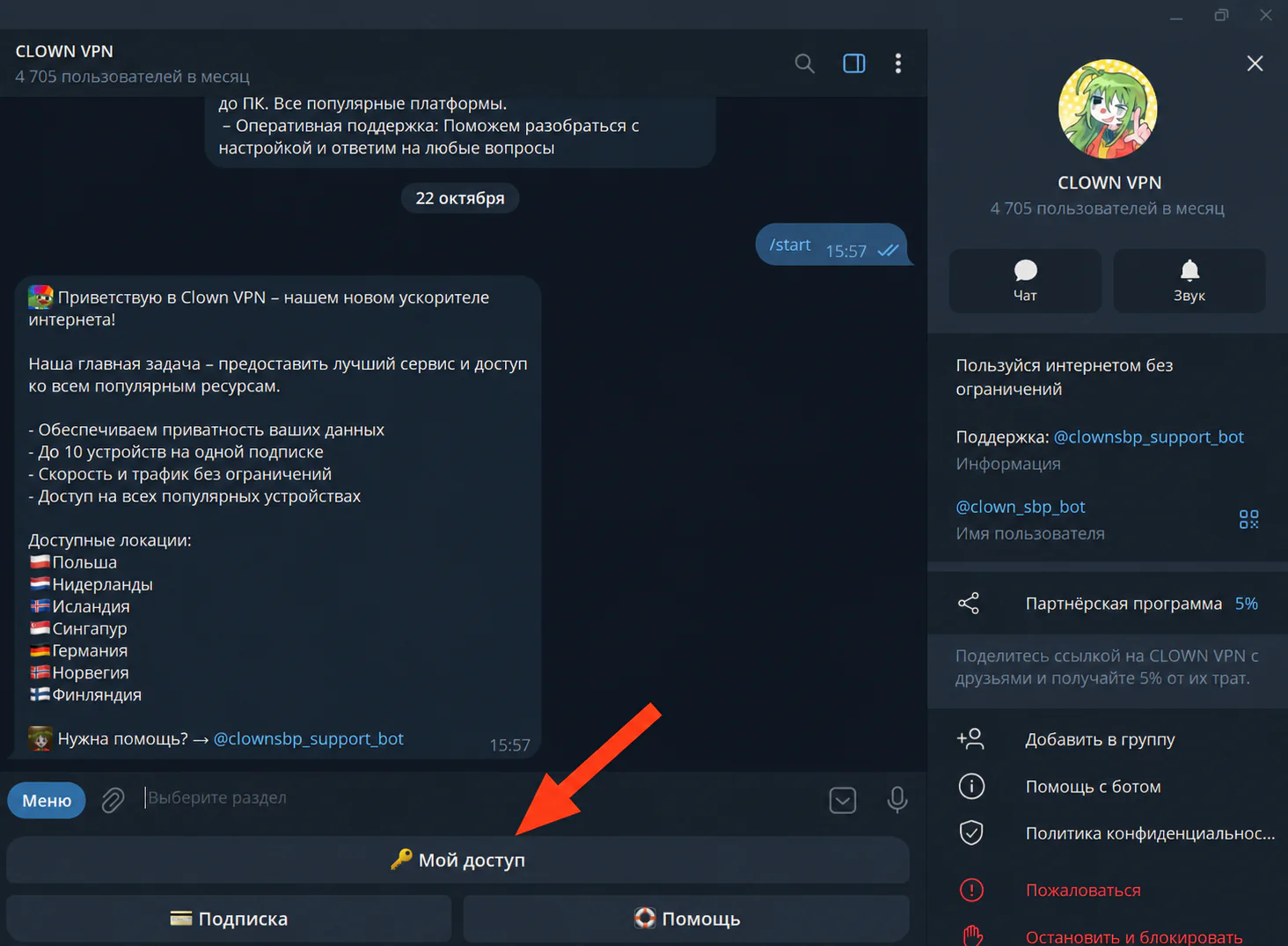
Click to enlarge Go to «🔑 Мой доступ» (My access)
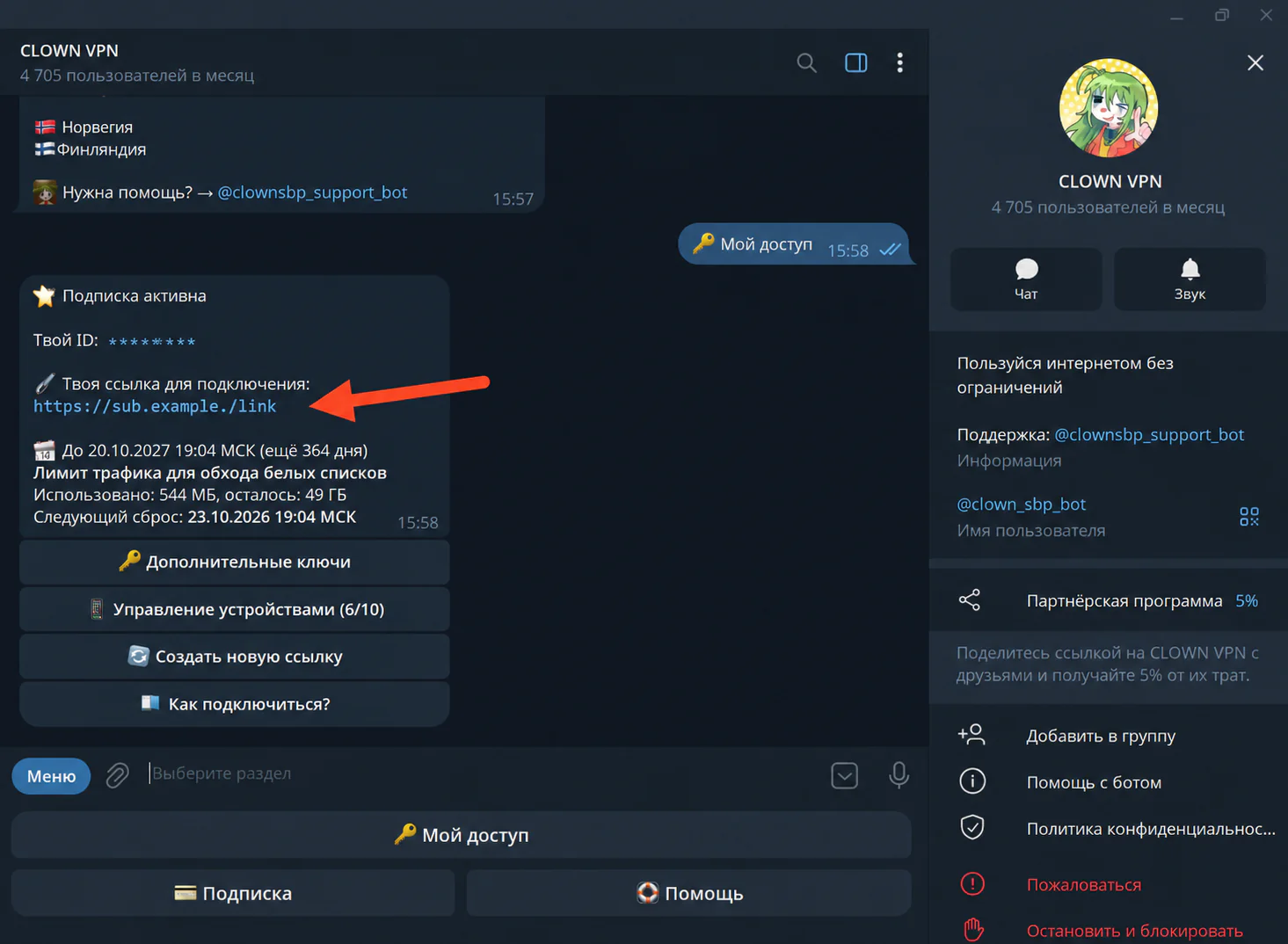
After the /start command, select «🔑 Мой доступ» (My access) in the bot menu.
Click to enlarge Copy your connection link
Copy your link in full — you will need it to add the subscription.
Click to enlarge Add the subscription to Happ
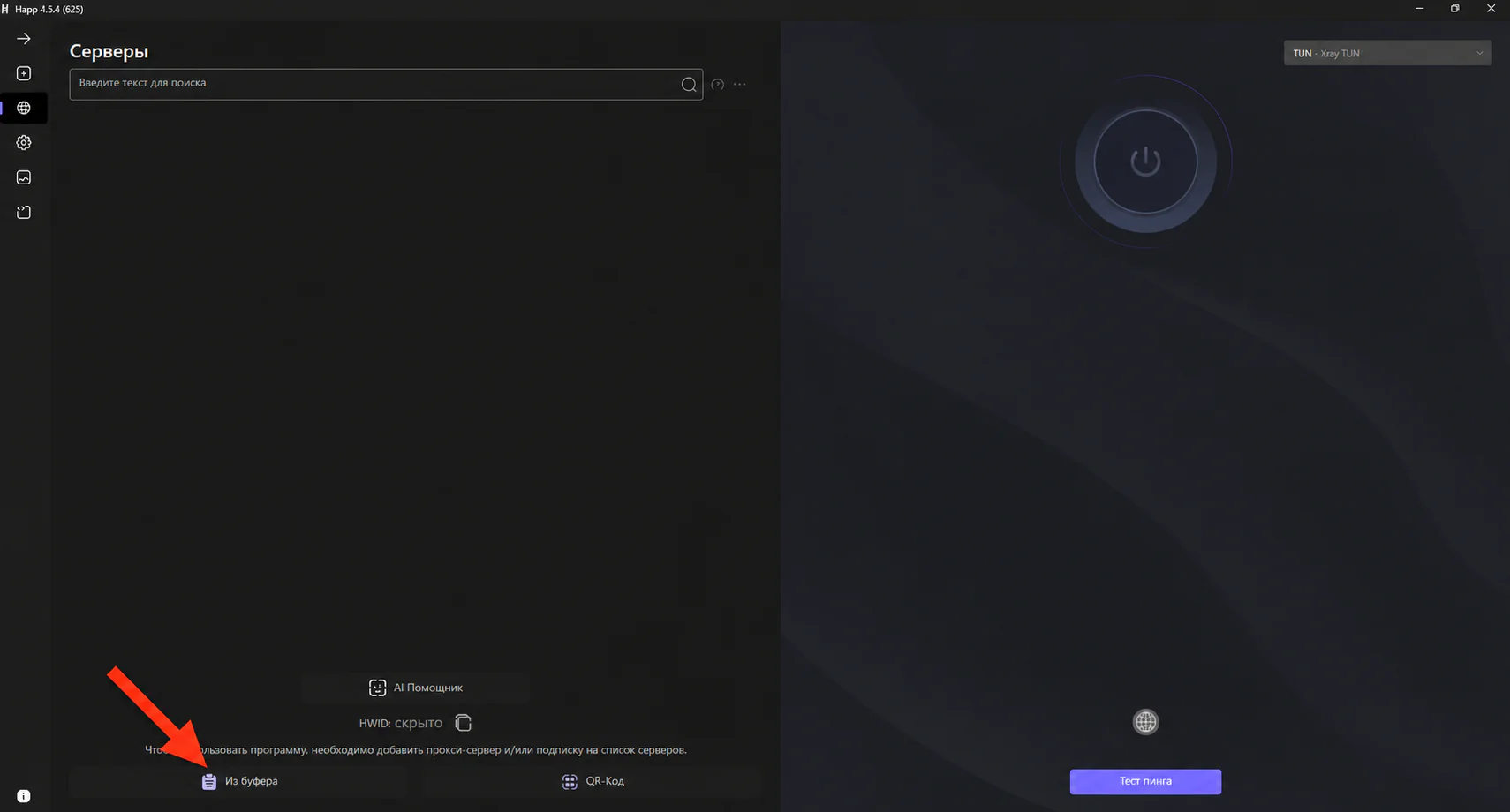
Open Happ and click “Clipboard” to paste the copied link.
After adding the subscription to Happ, a list of available servers will appear.
Click to enlarge Connect to a server
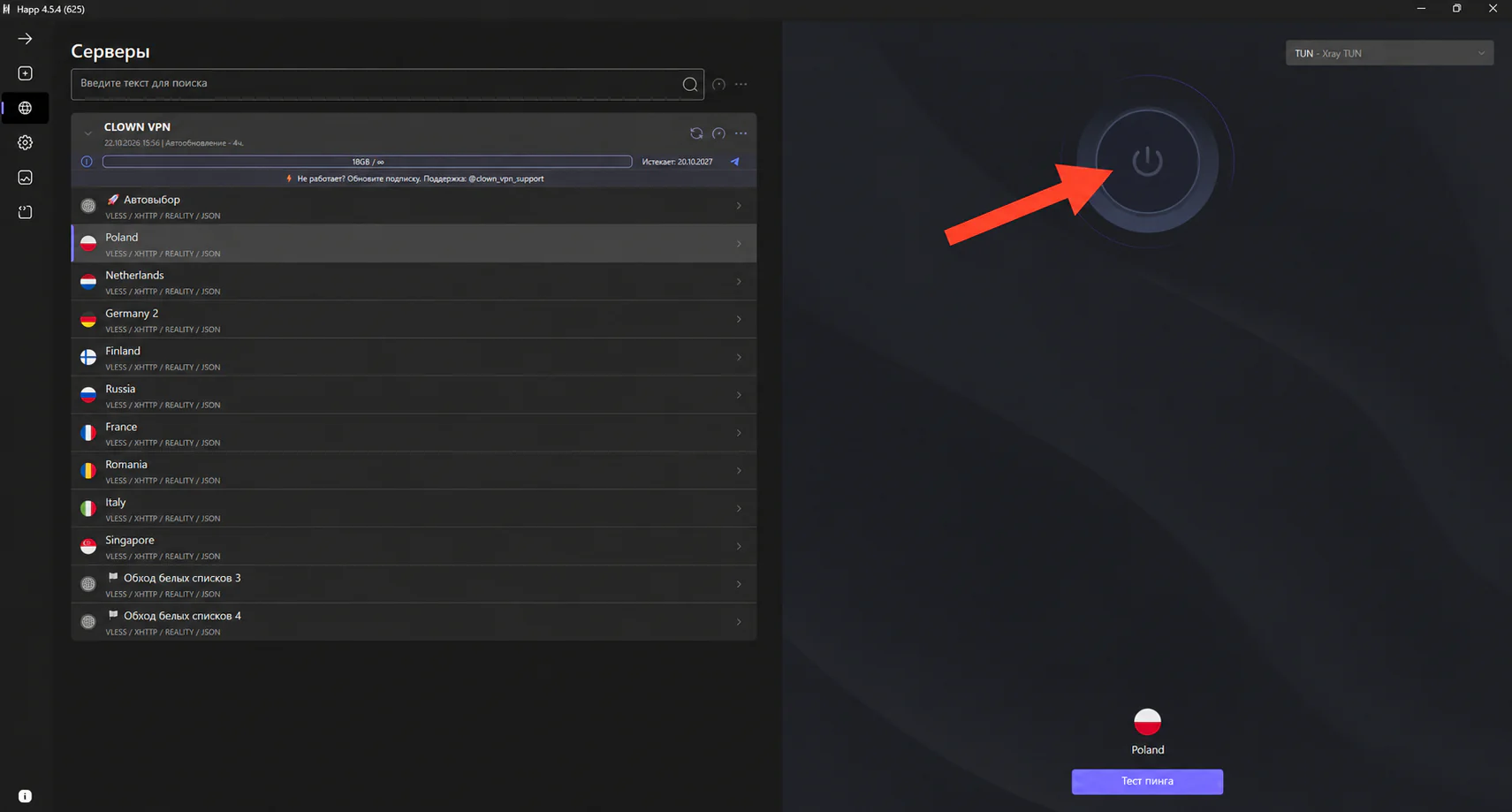
Choose a server and try to connect.
If it doesn’t connect, update the subscription and try a different server.
Click to enlarge 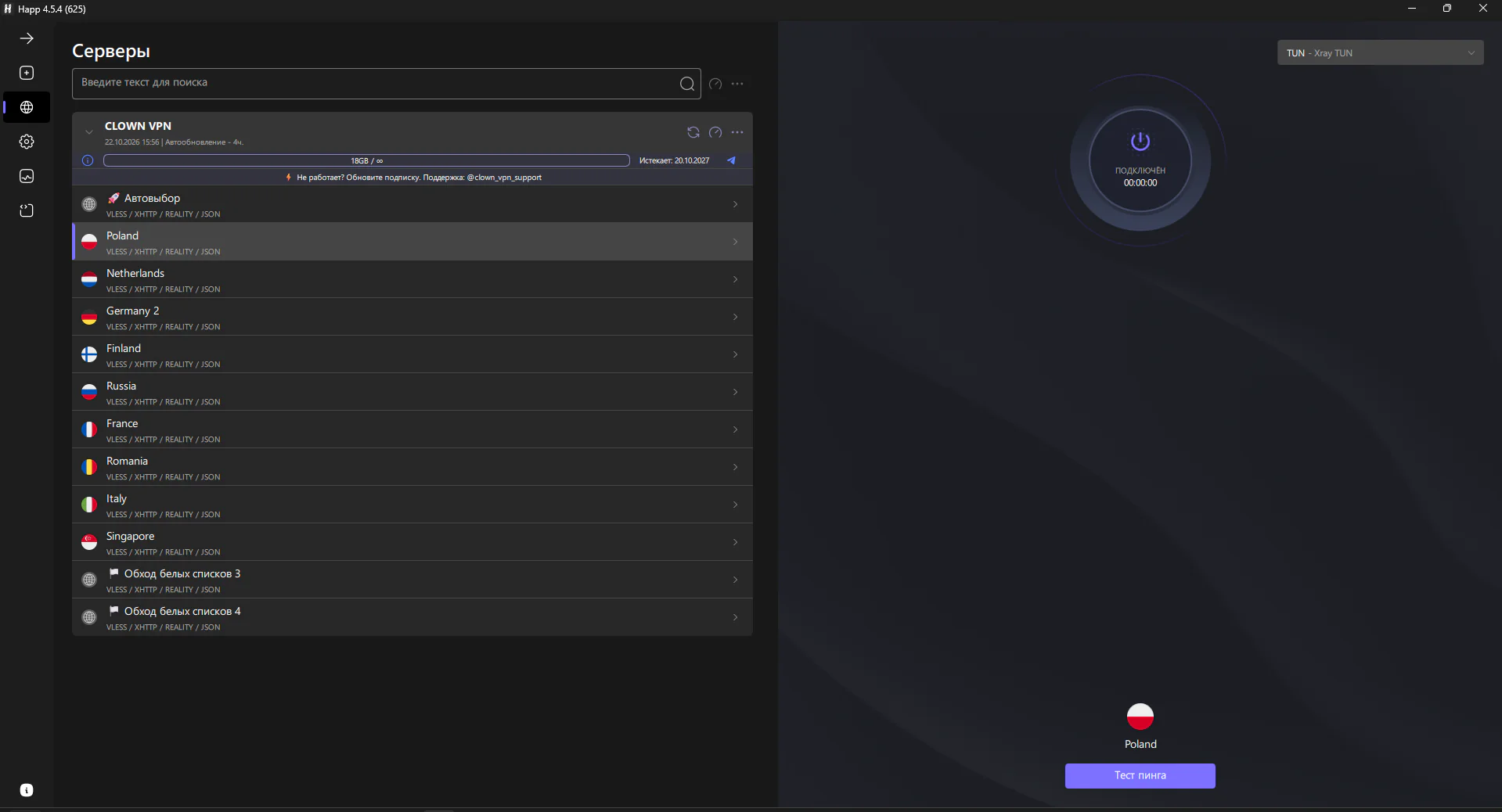
Click to enlarge
Having trouble connecting?
Update the subscription in the app. If that doesn’t help, contact support and tell us your device, app and internet provider or mobile carrier.
Connect using Throne
If the app is already installed, start from step 3.
Download Throne
Download the Throne installer for Windows from the official download page.
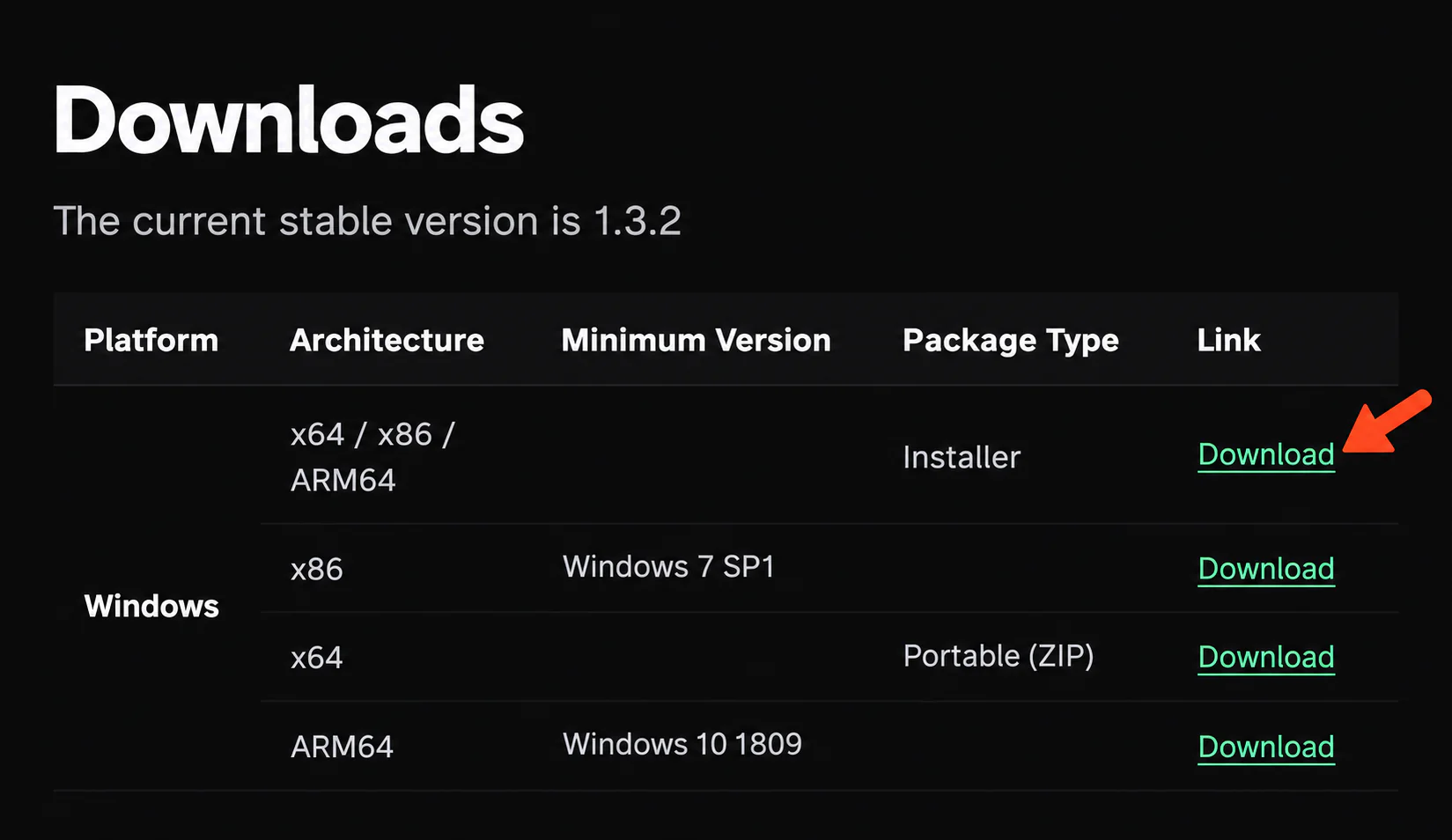
Click to enlarge Install and open the app
Run the downloaded installer, finish the installation and open Throne.
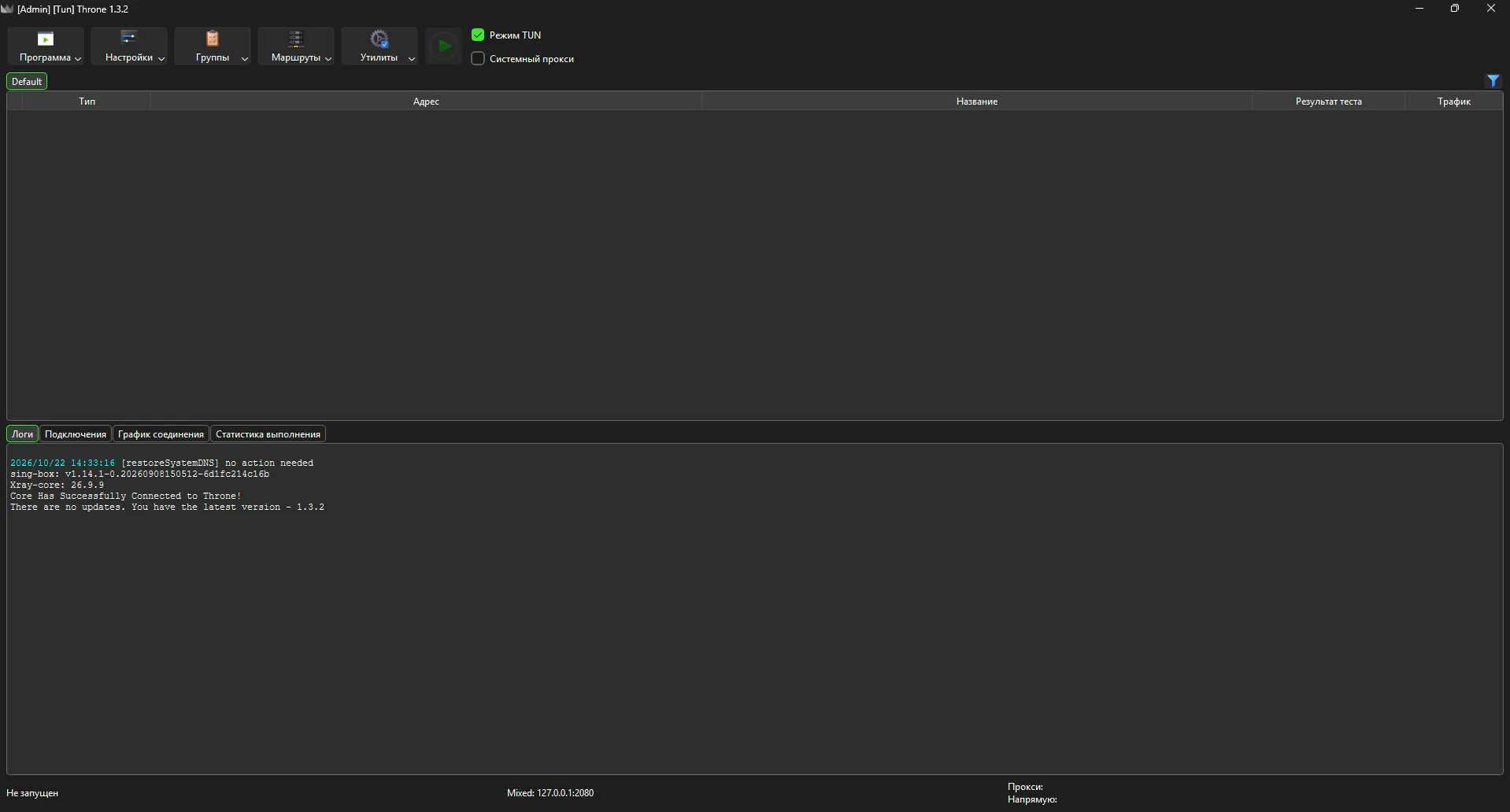
Click to enlarge Start the Telegram bot
Open the bot @clown_sbp_bot in Telegram and send the /start command.
Click to enlarge Go to «🔑 Мой доступ» (My access)
After the /start command, select «🔑 Мой доступ» (My access) in the bot menu.
Click to enlarge Copy your connection link
Copy your link in full — you will need it to add the subscription.
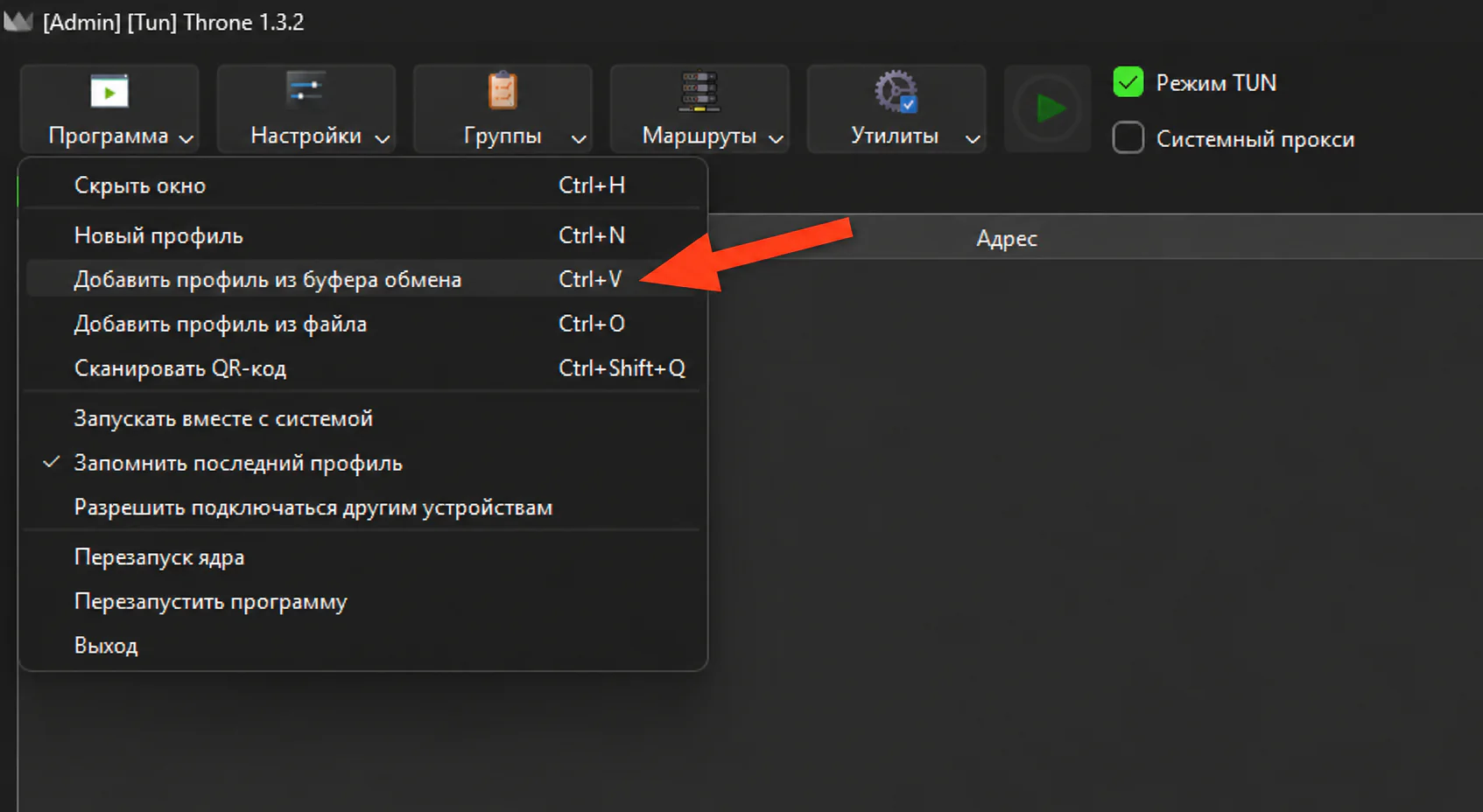
Click to enlarge Add a profile to Throne
Add a profile in one of the following ways:
- simply paste the copied link into the app;
- choose “Add profile from clipboard” in the “Program” menu.
Click to enlarge Enable HWID sending
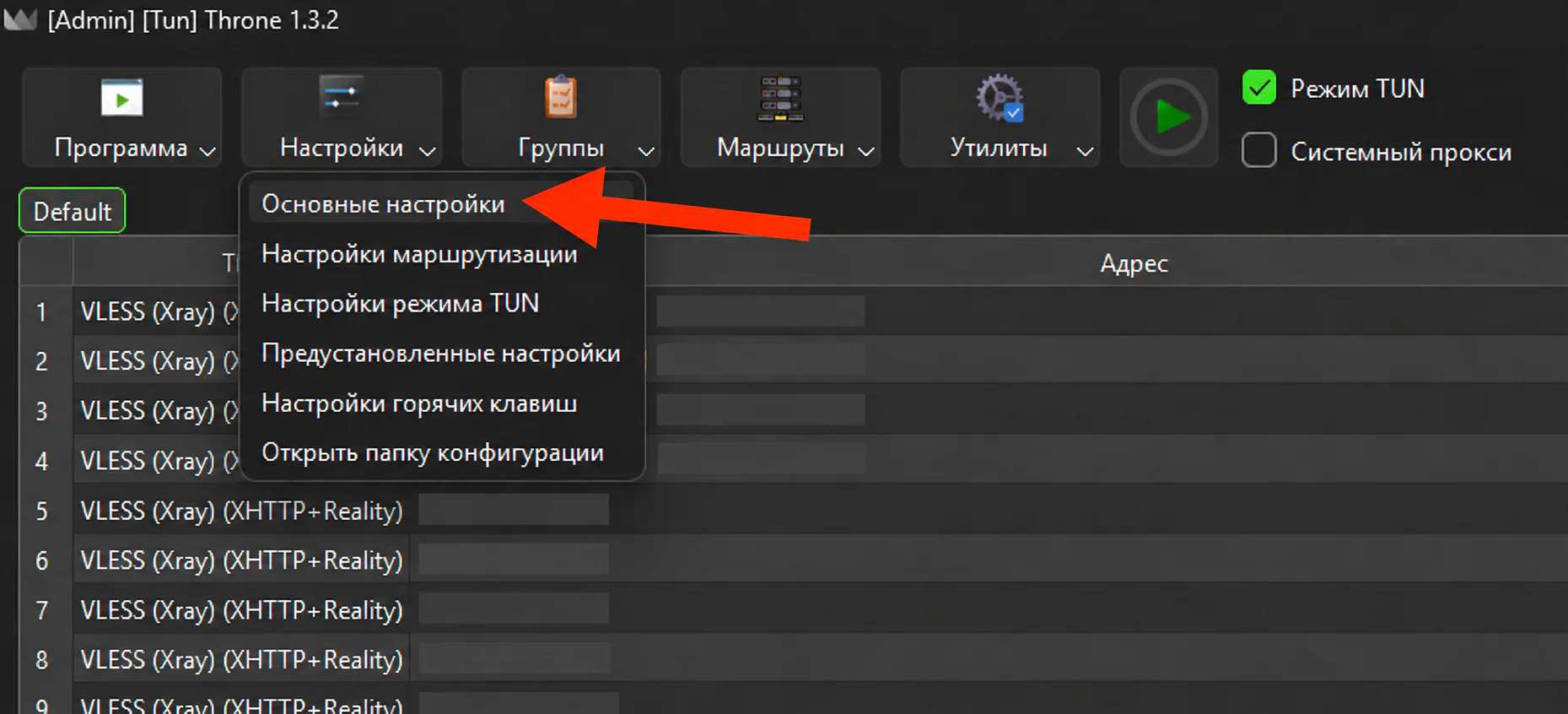
After adding the subscription, open the app settings:
- in the “Settings” menu, select “Basic Settings”;
- open the “Subscription” tab;
- turn on “Enable sending HWID, device model, and OS version when updating subscription”.
Click to enlarge 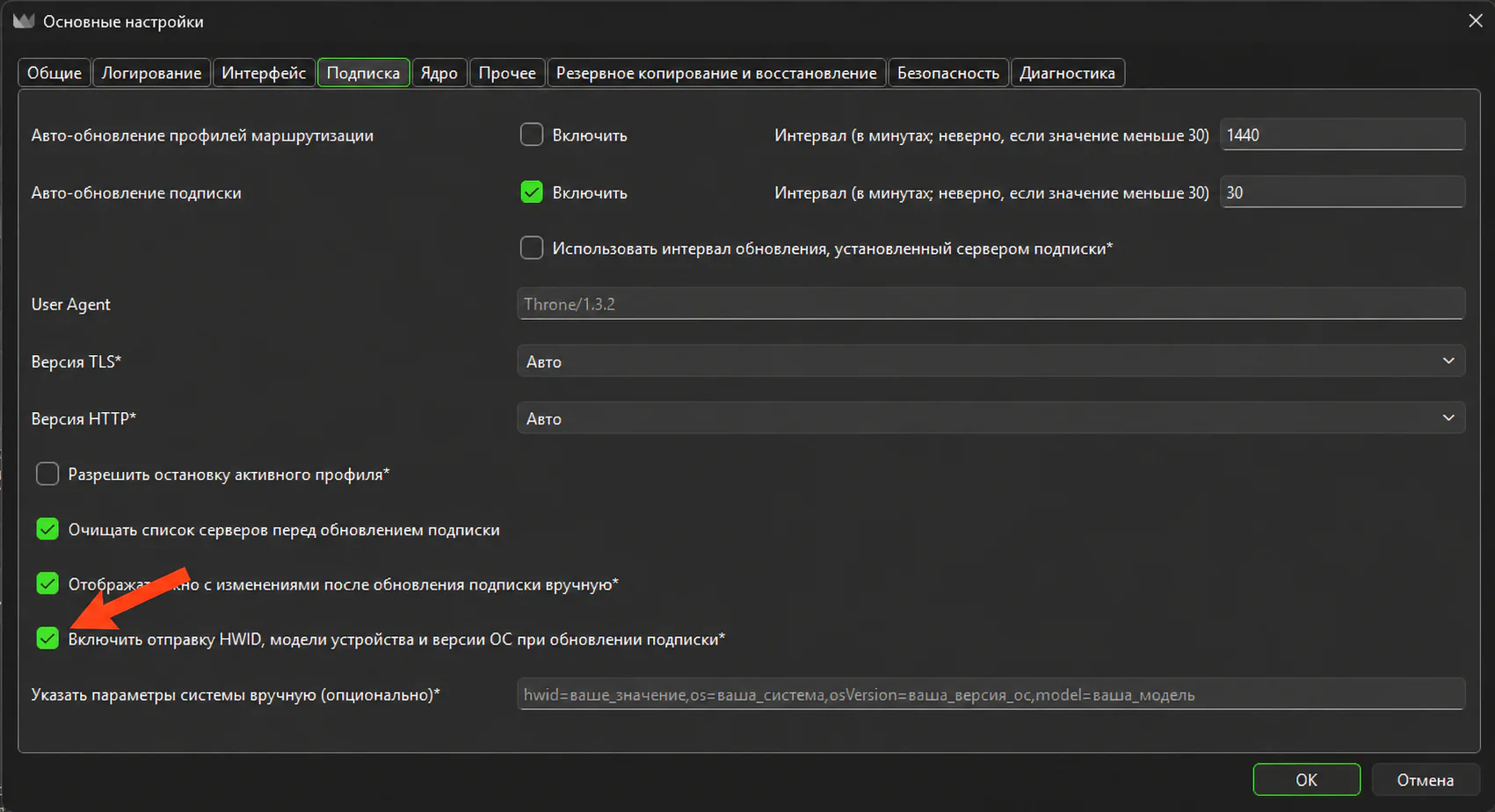
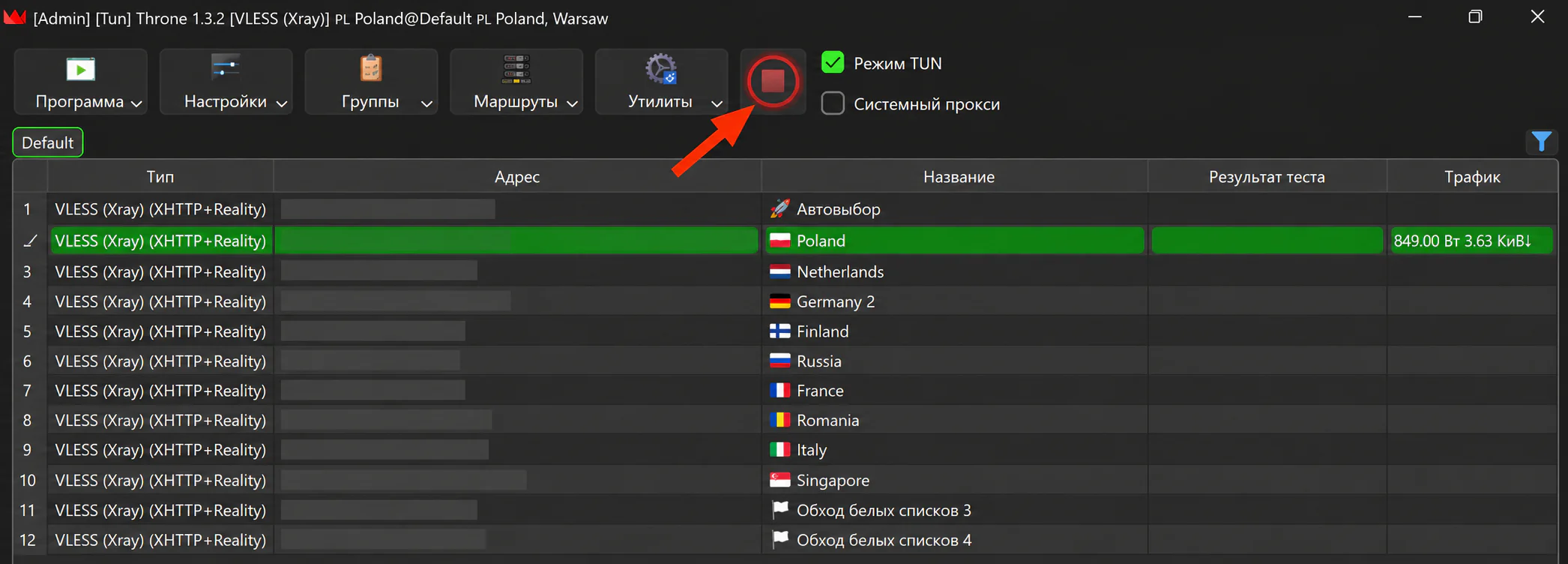
Click to enlarge Connect to a server
Choose the server you want and turn on the connection.
If it doesn’t connect, update the subscription and try a different server.
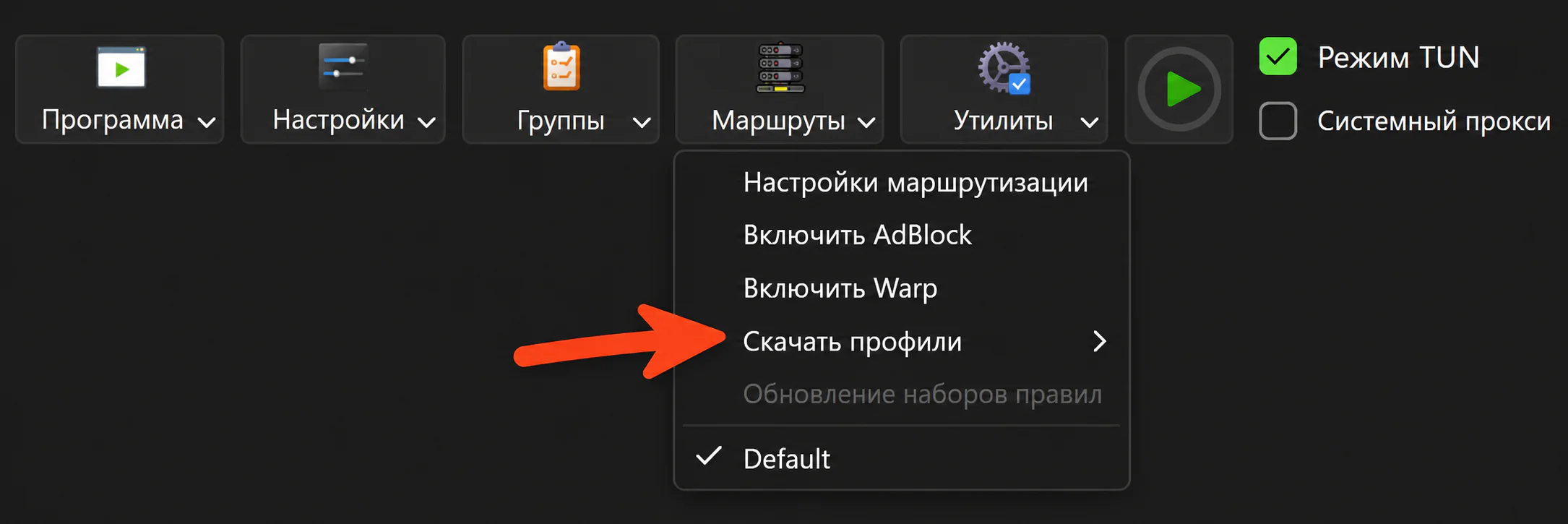
Click to enlarge Set up routing if needed
If you need access to Russian websites without turning off the VPN, choose a suitable routing profile:
- Bypass Russia — Russian websites and the local network bypass the VPN, all other traffic goes through it;
- Proxy Russia Blocked — only blocked websites go through the VPN, everything else bypasses it;
- Proxy Antizapret / Proxy Refilter — only websites from blocklists go through the VPN.
Click to enlarge 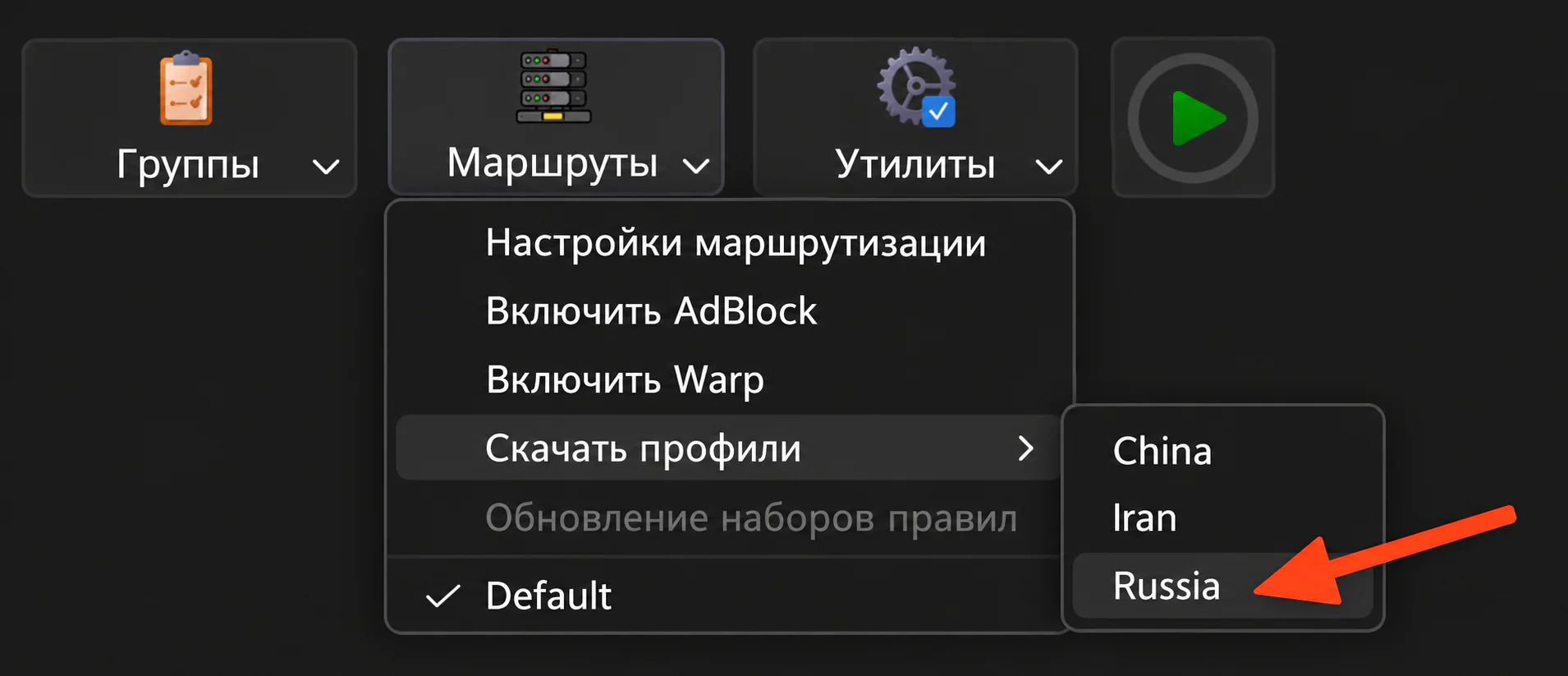
Click to enlarge 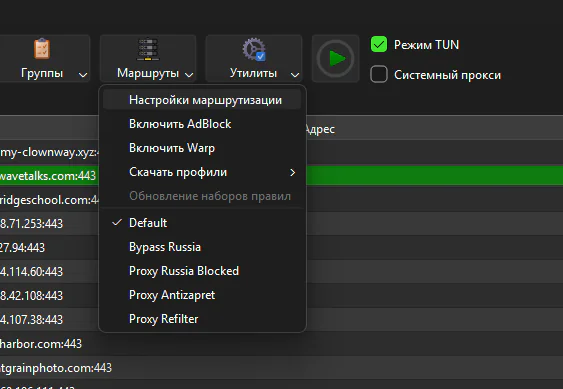
Click to enlarge
Having trouble connecting?
Update the subscription in the app. If that doesn’t help, contact support and tell us your device, app and internet provider or mobile carrier.
Connect using INCY
If the app is already installed, start from step 2.
Install INCY on your computer
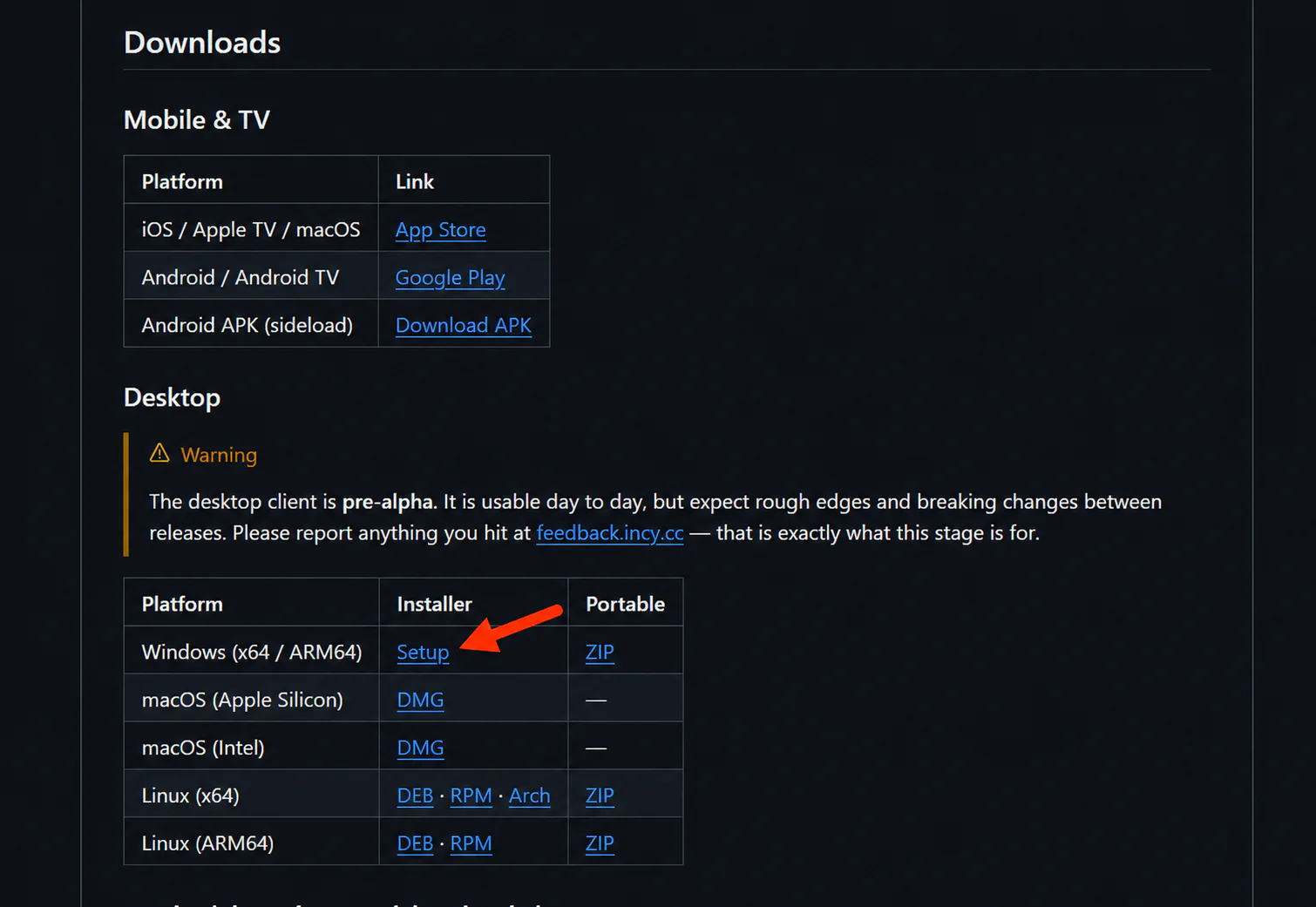
Download the INCY installer for Windows from the official repository, run it and finish the installation.
If SmartScreen warns about an unknown publisher, make sure the installer was downloaded from the official repository and select “Run anyway”.
Click to enlarge 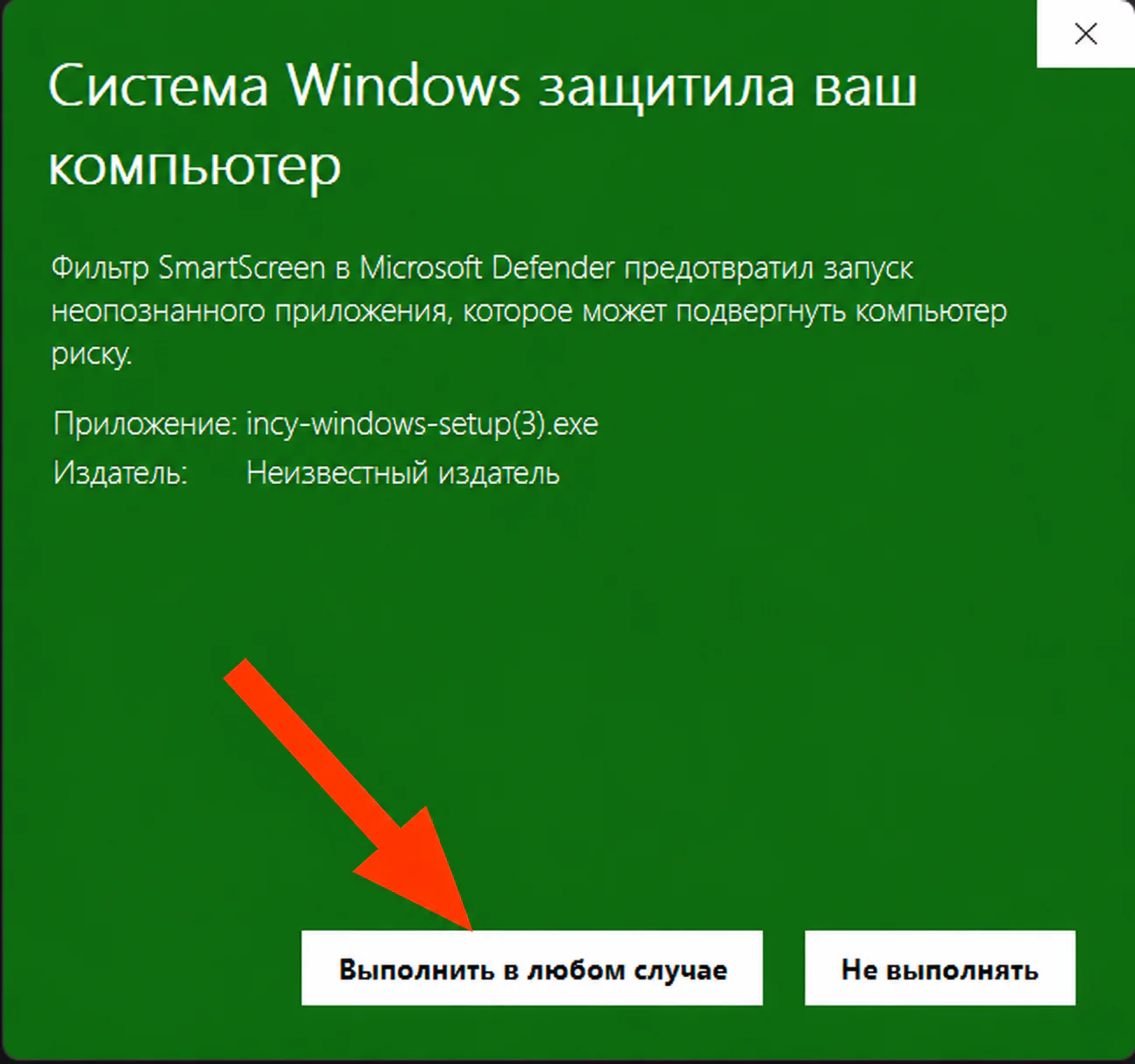
Click to enlarge Start the Telegram bot
Open the bot @clown_sbp_bot in Telegram and send the /start command.
Click to enlarge Go to «🔑 Мой доступ» (My access)
After the /start command, select «🔑 Мой доступ» (My access) in the bot menu.
Click to enlarge Copy your connection link
Copy your link in full — you will need it to add the subscription.
Click to enlarge Add the subscription to INCY
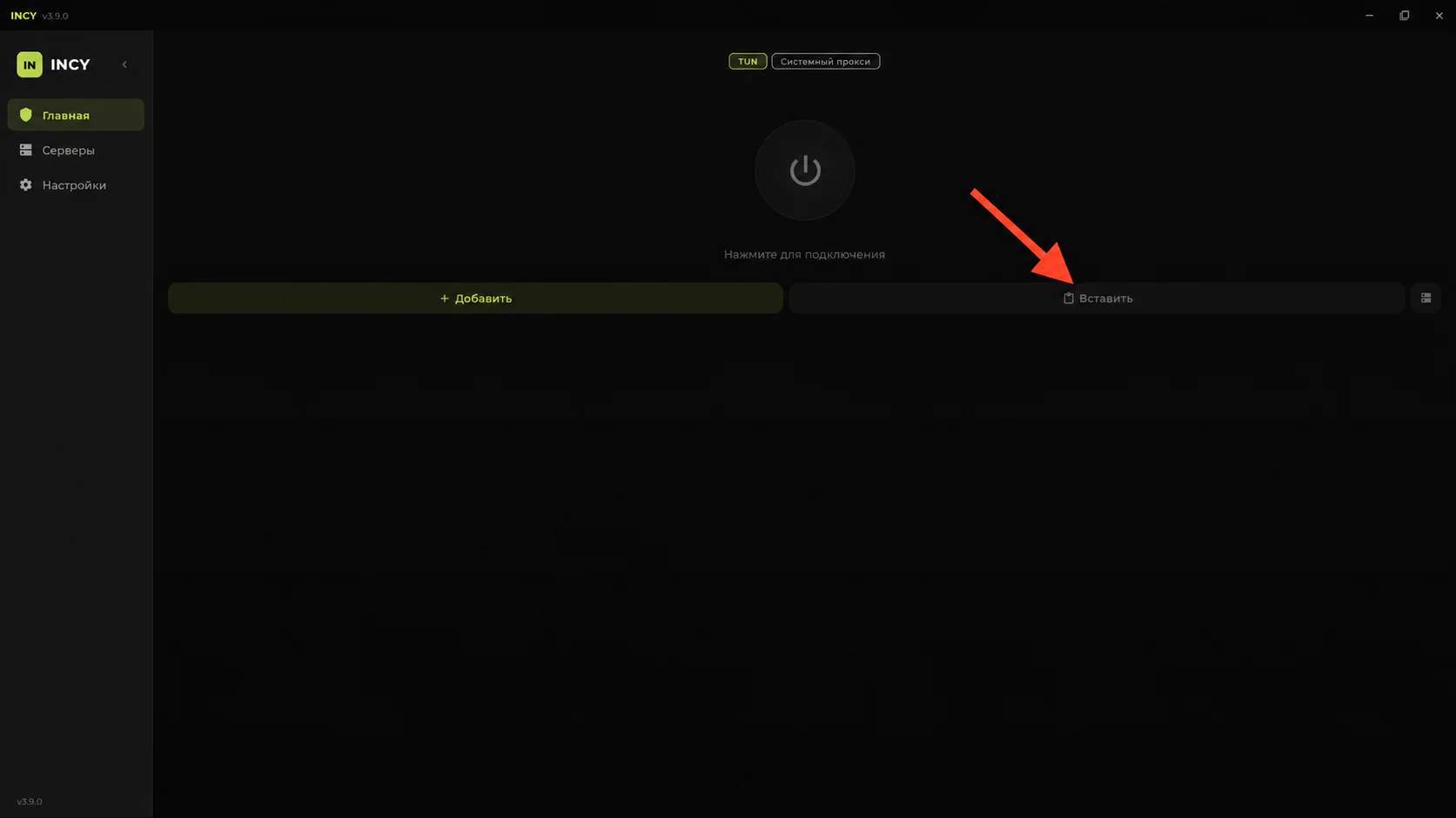
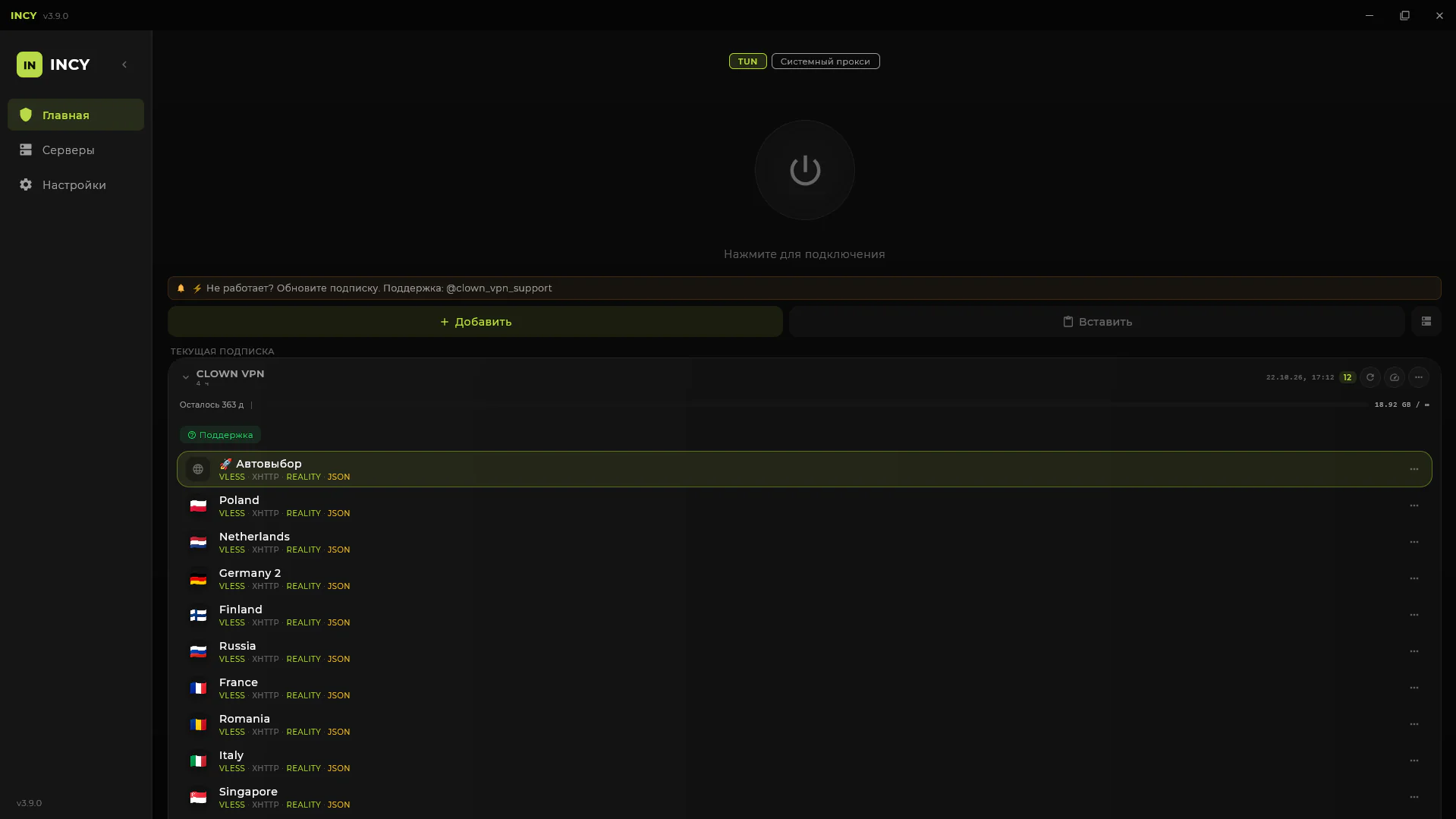
Open INCY and click “Paste” to add the copied link.
After adding the subscription to INCY, a list of available servers will appear.
Click to enlarge Connect to a server
Choose a server and click the connect button.
- when INCY asks for administrator rights, click “Restart as admin”;
- confirm the Windows system prompt;
- after the app restarts, turn the connection on again.
For the VPN to work in TUN mode, INCY must be launched with administrator rights.
Click to enlarge 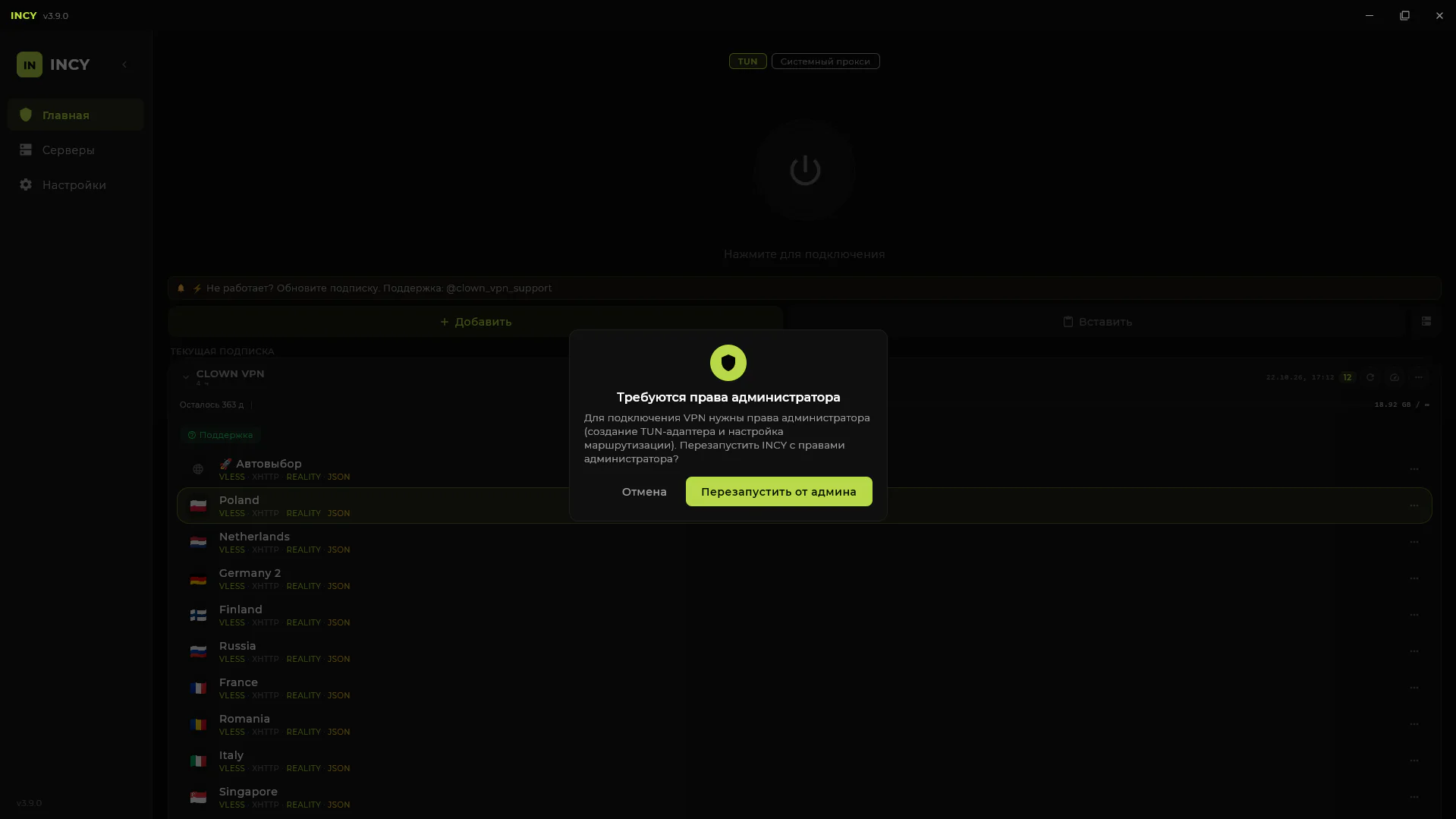
Click to enlarge 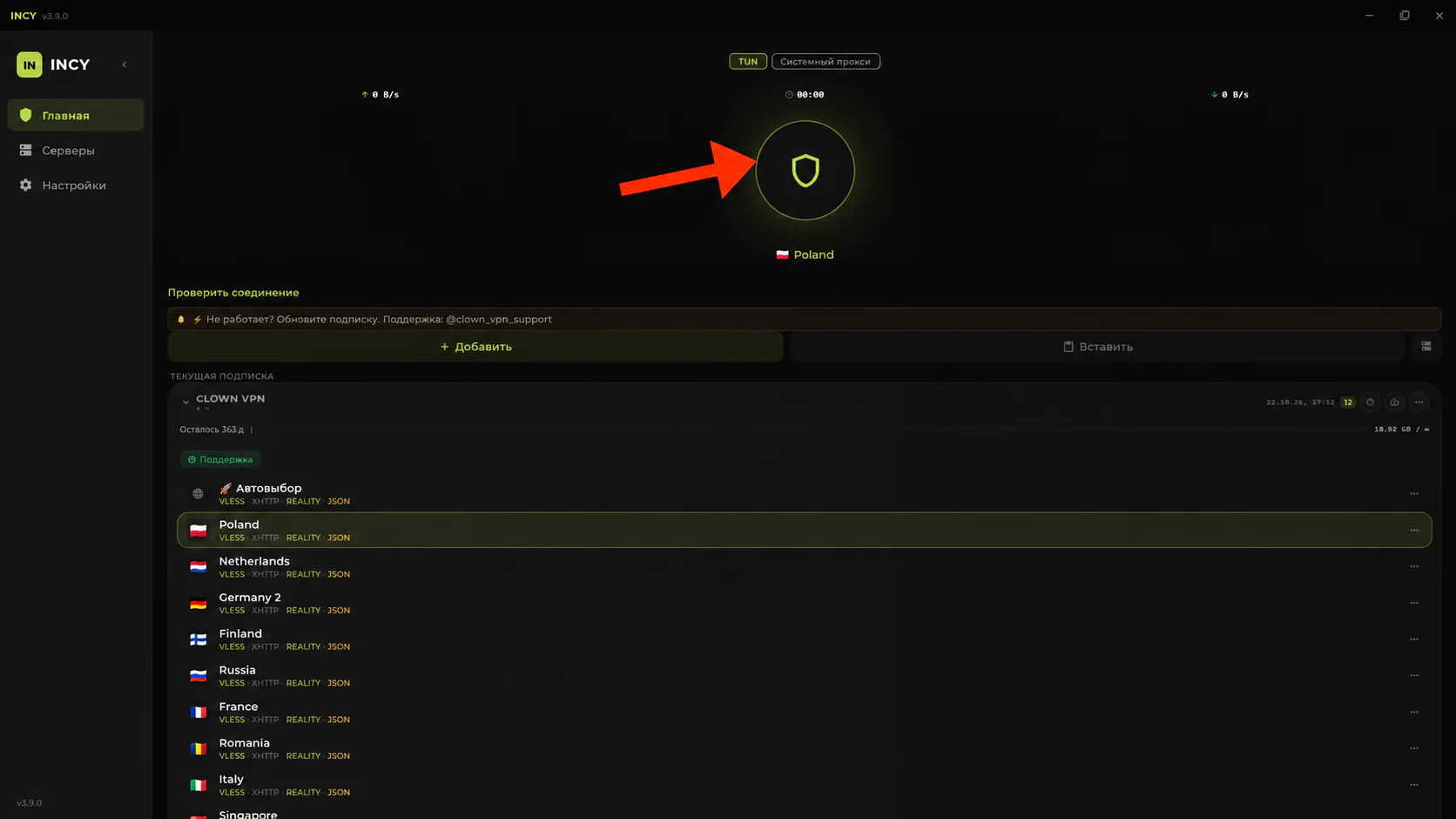
Click to enlarge
Having trouble connecting?
Update the subscription in the app. If that doesn’t help, contact support and tell us your device, app and internet provider or mobile carrier.