
Guide · macOS
How to set up VPN on Mac
Install a suitable app, get a link in the Telegram bot and add it to the app. The screenshots show where to click at each step.
Choose an app
Choose Happ, Throne or INCY.
The screenshots and the Telegram bot are in Russian. Button names are given as they appear in each app’s English interface, and bot buttons are shown in Russian with an English translation. Buttons are in the same place in every language.
Connect using Happ
If the app is already installed, start from step 2.
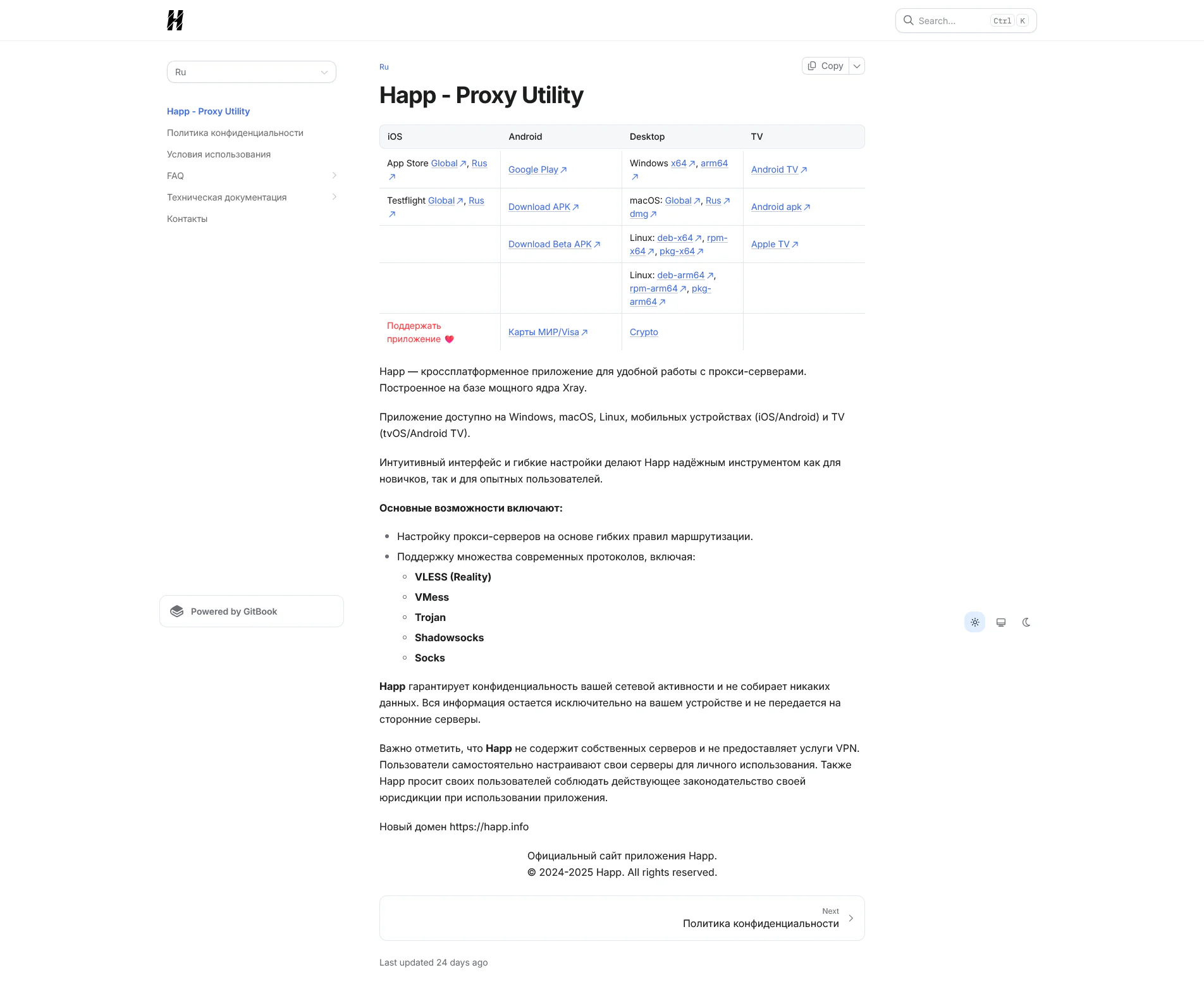
Install Happ on Mac
Download Happ for macOS from the official website, install the app and open it.
If macOS asks for permission to open the app or add a VPN configuration, confirm the action.
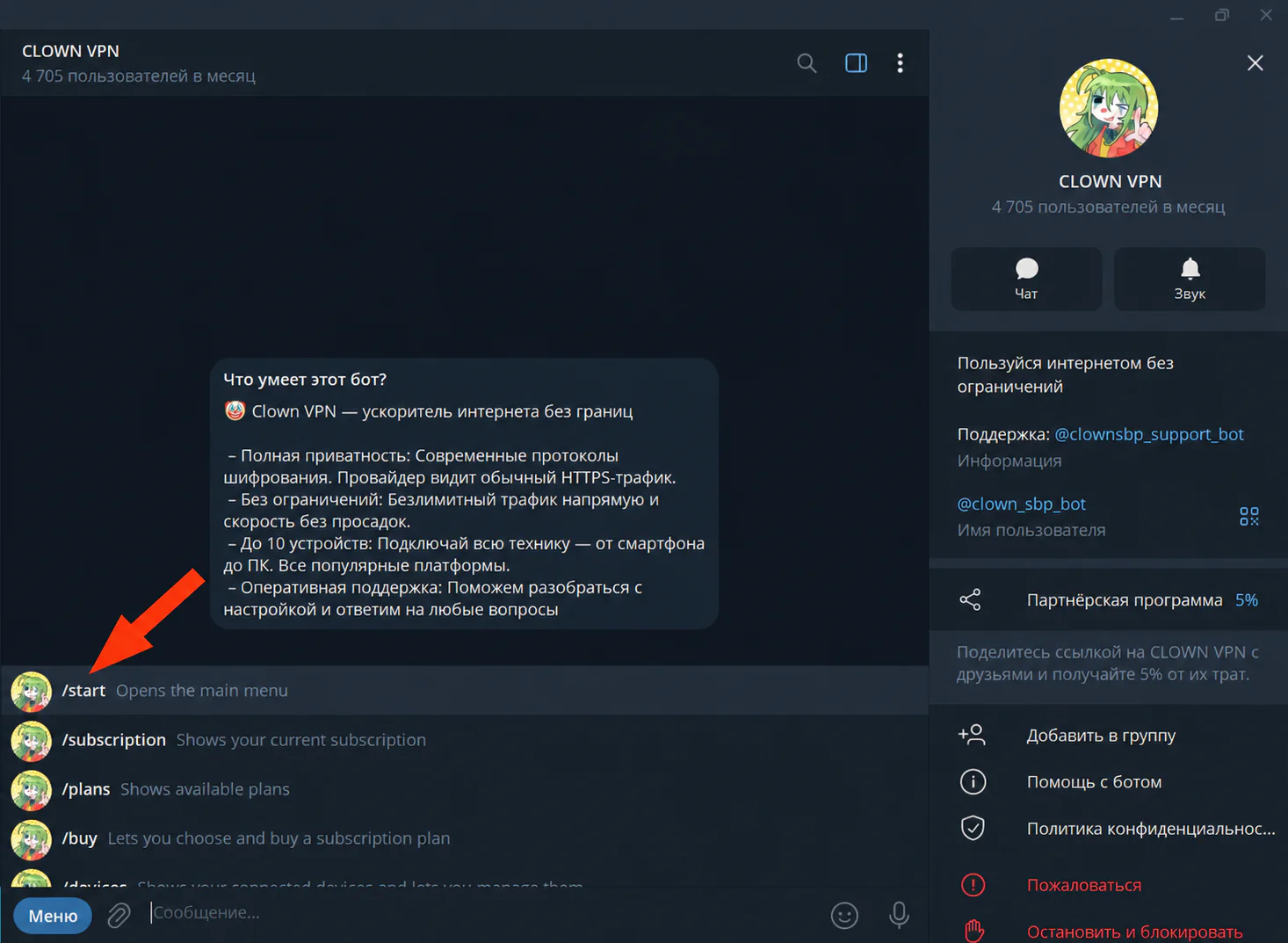
Click to enlarge Start the Telegram bot
Open the bot @clown_sbp_bot in Telegram and send the /start command.
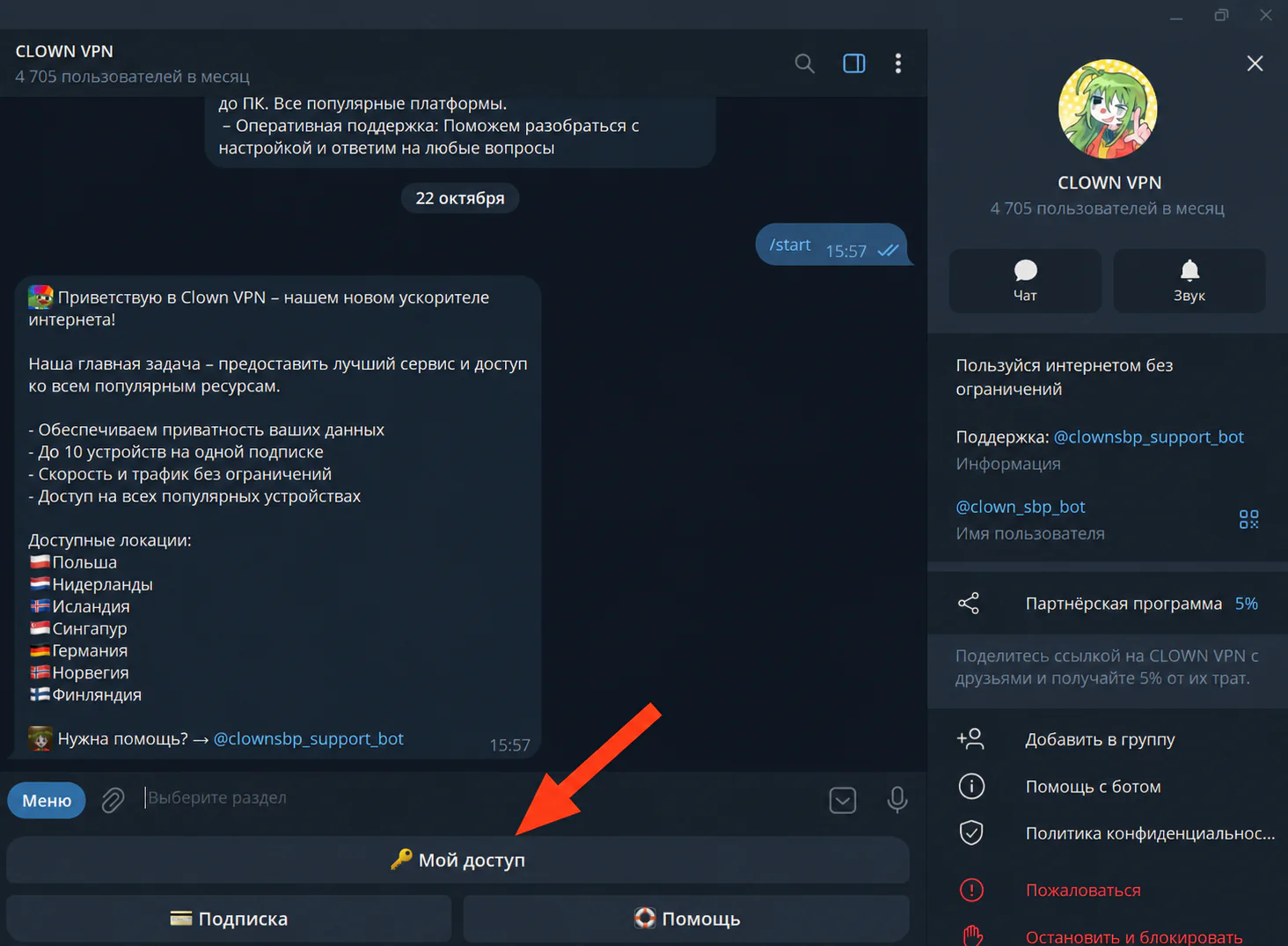
Click to enlarge Go to «🔑 Мой доступ» (My access)
After the /start command, select «🔑 Мой доступ» (My access) in the bot menu.
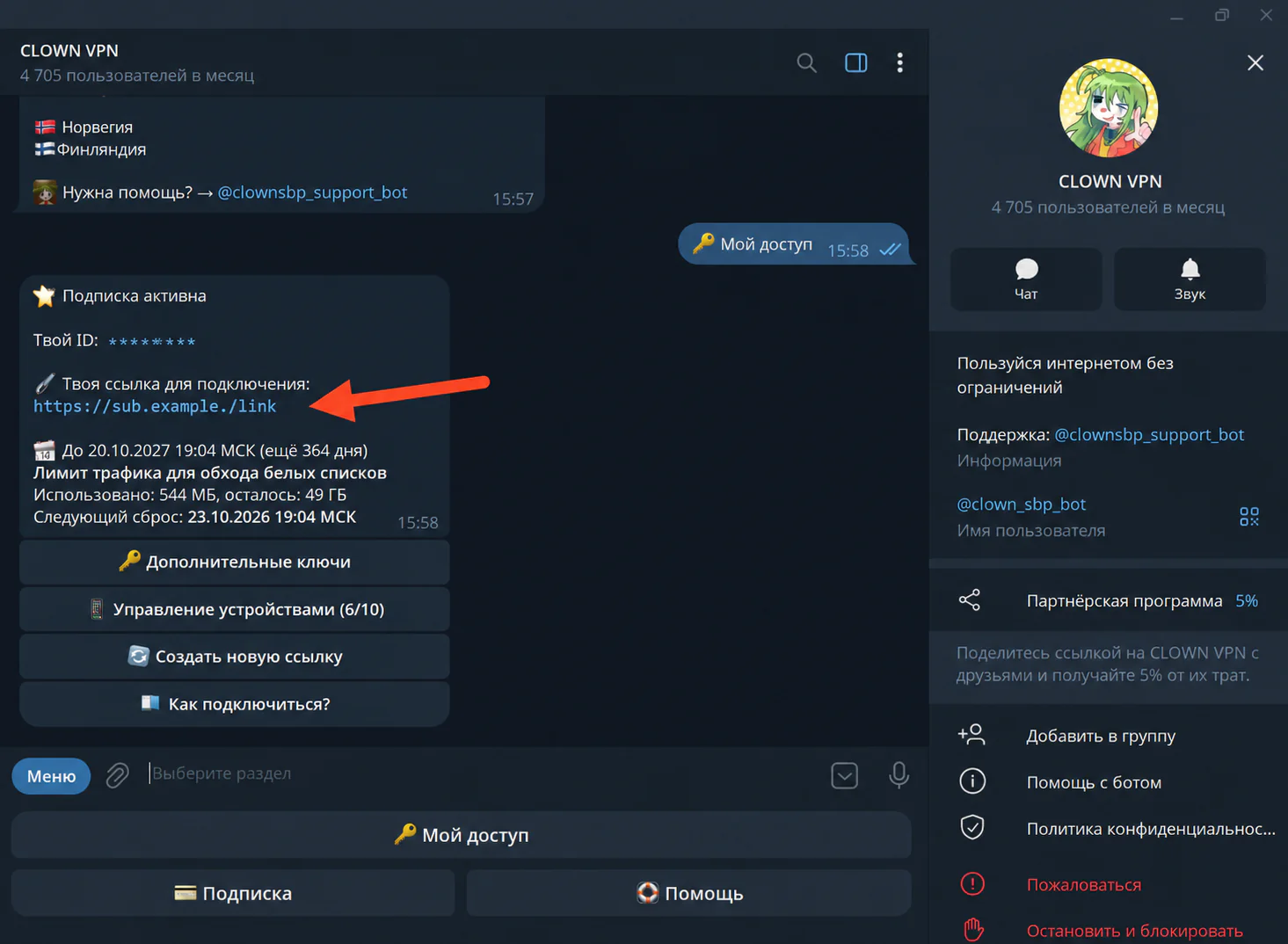
Click to enlarge Copy your connection link
Copy your link in full — you will need it to add the subscription.
Click to enlarge Add the subscription to Happ
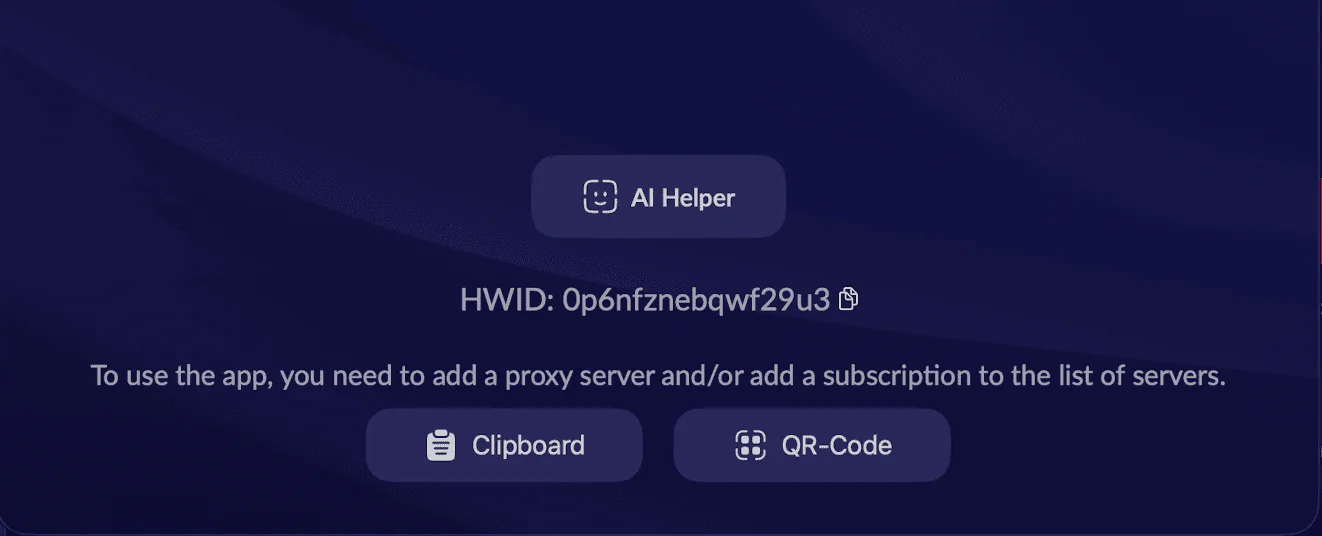
Go back to Happ and click “Clipboard” to paste the copied link.
After importing, a list of available servers will appear in the app.
Click to enlarge 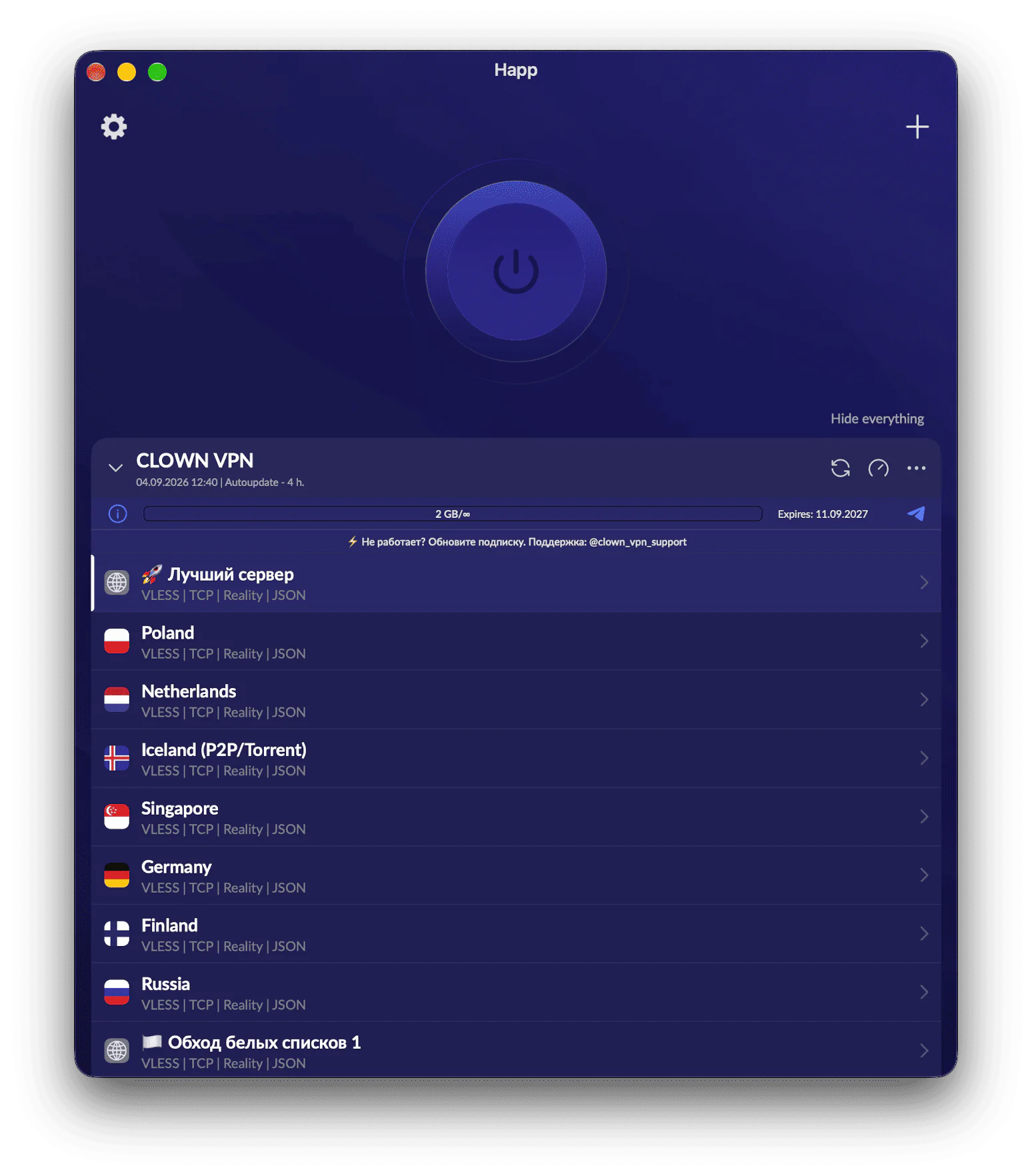
Click to enlarge Connect to a server
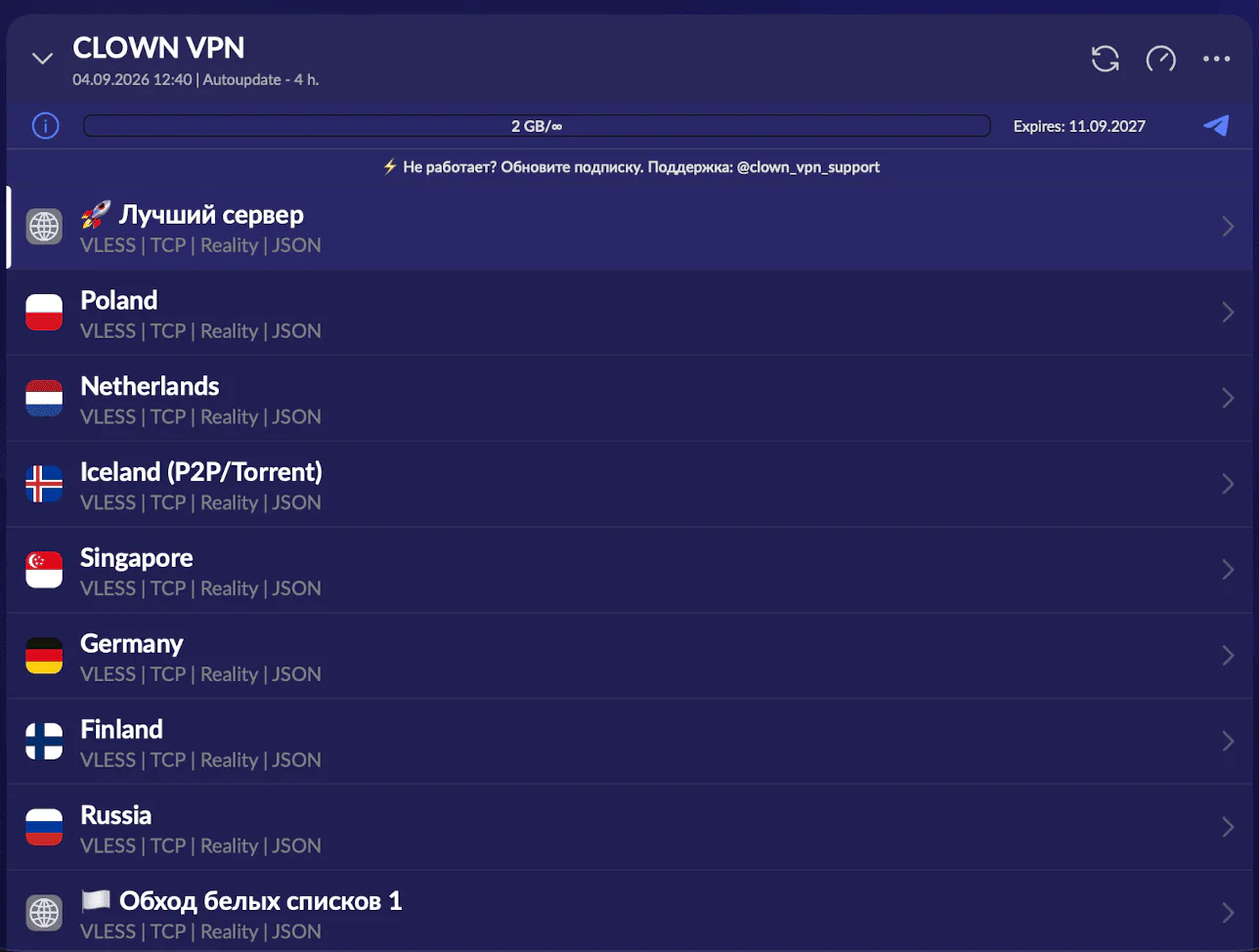
Choose the location you want, then click the large connect button.
If it doesn’t connect, update the subscription and try a different server.
Click to enlarge 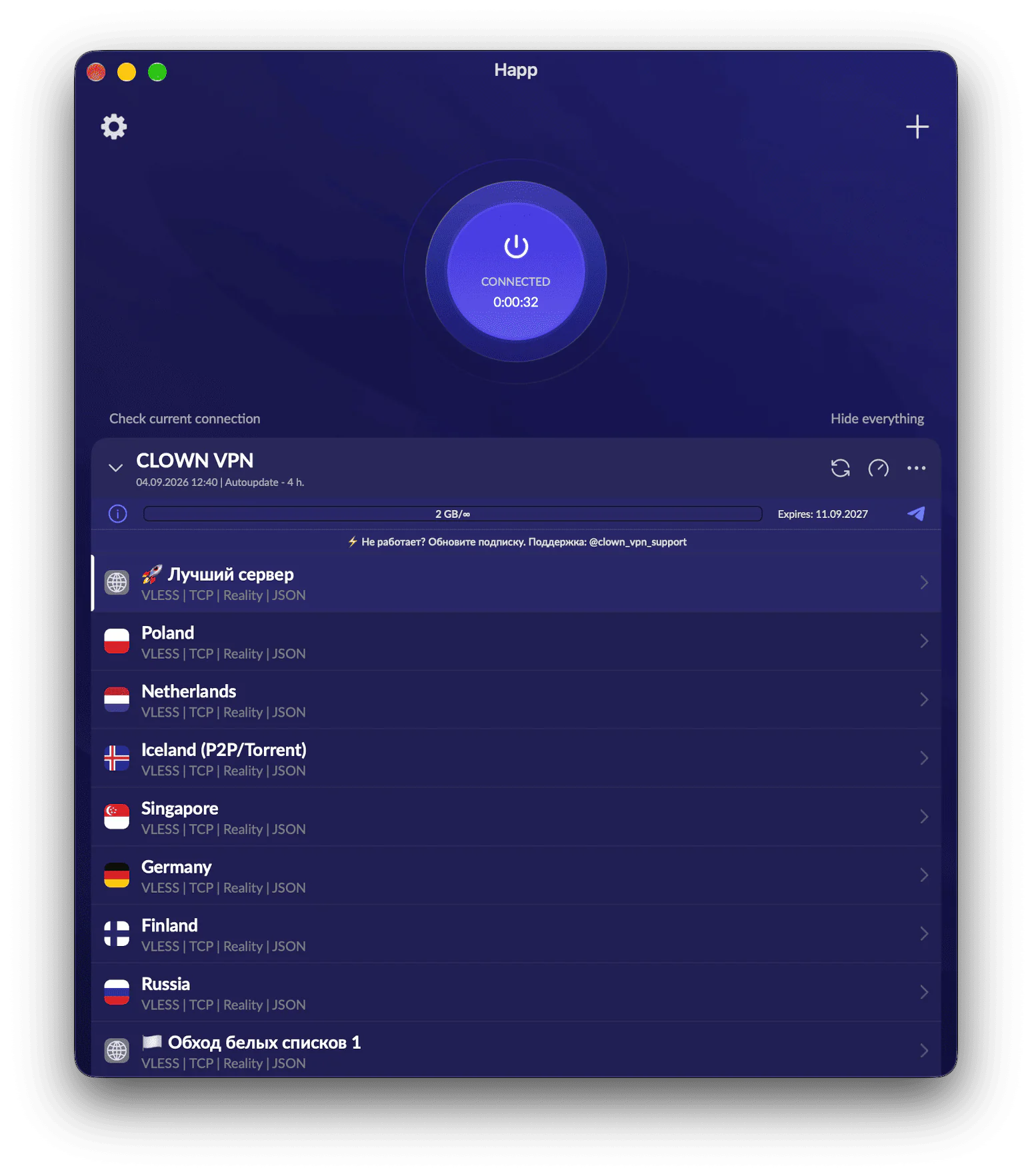
Click to enlarge
Having trouble connecting?
Update the subscription in the app. If that doesn’t help, contact support and tell us your device, app and internet provider or mobile carrier.
Connect using Throne
If the app is already installed, start from step 3.
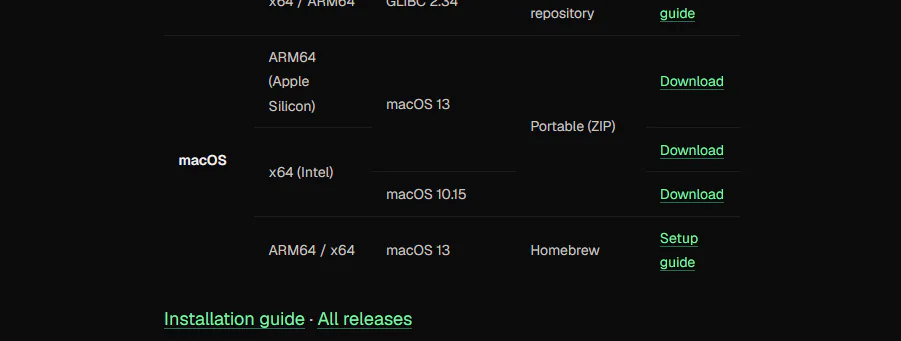
Download Throne
On the official page, choose the ARM64 version for Mac with Apple Silicon or the x64 version for Mac with an Intel processor.
You can download the Portable (ZIP) archive or install it with Homebrew by following the instructions on that page.
Click to enlarge Install and open the app
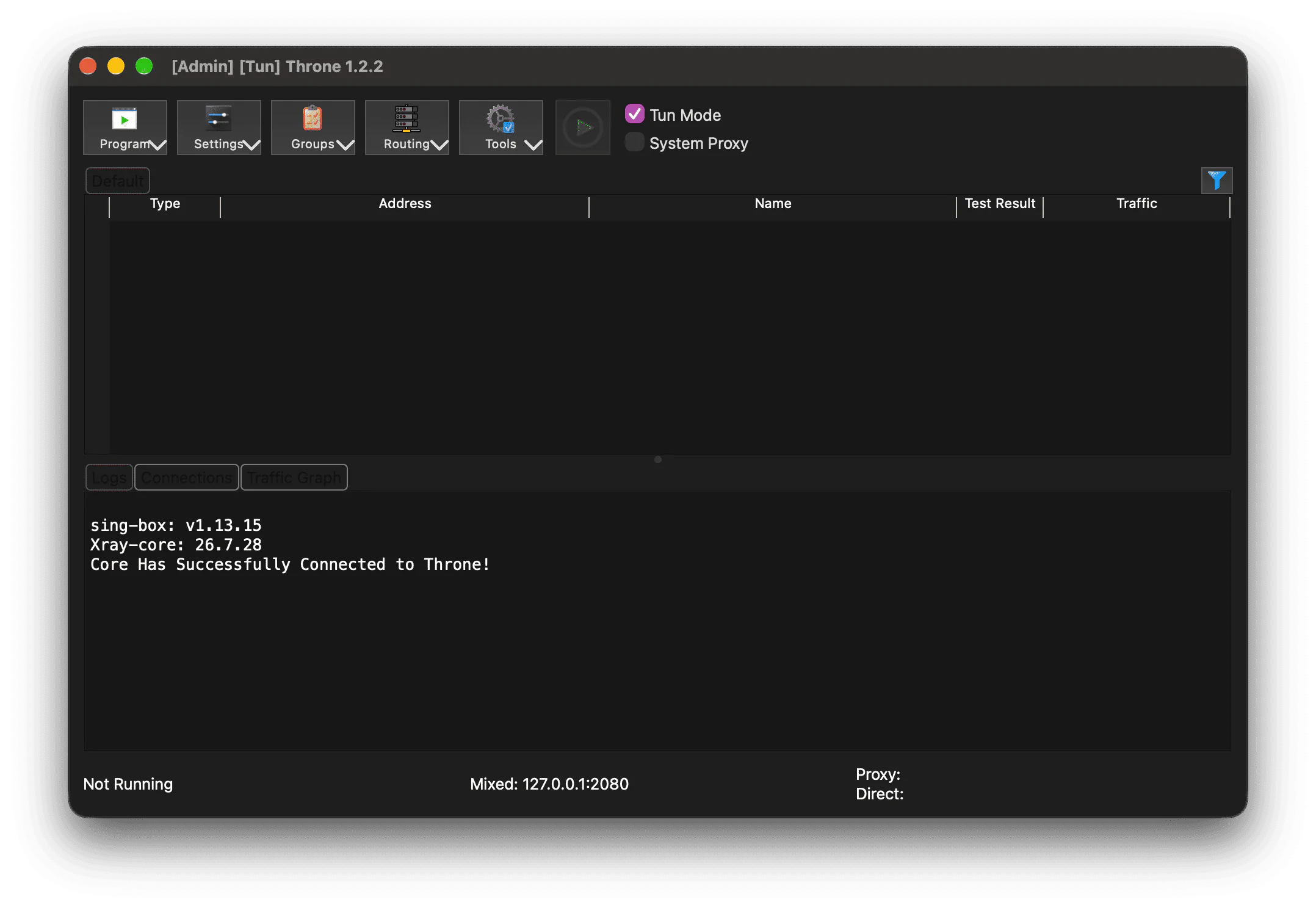
Unpack the downloaded archive, move Throne to “Applications” and launch the app.
On first launch, macOS may ask for permission. Confirm it so that TUN mode can work.
Click to enlarge Start the Telegram bot
Open the bot @clown_sbp_bot in Telegram and send the /start command.
Click to enlarge Go to «🔑 Мой доступ» (My access)
After the /start command, select «🔑 Мой доступ» (My access) in the bot menu.
Click to enlarge Copy your connection link
Copy your link in full — you will need it to add the subscription.
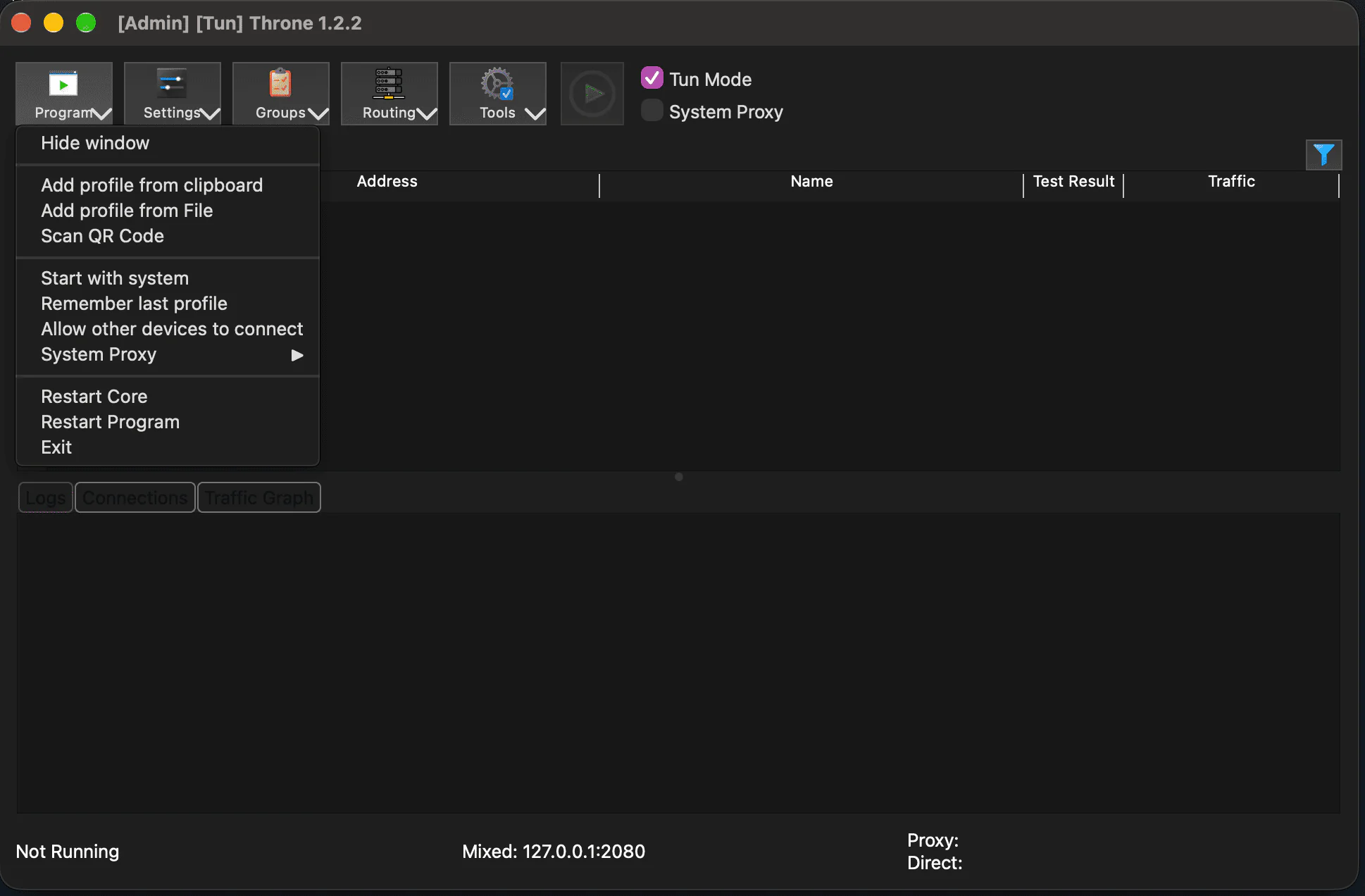
Click to enlarge Add a profile to Throne
Open the “Program” menu and select “Add profile from clipboard”.
Copy the link from «🔑 Мой доступ» (My access) before adding the profile.
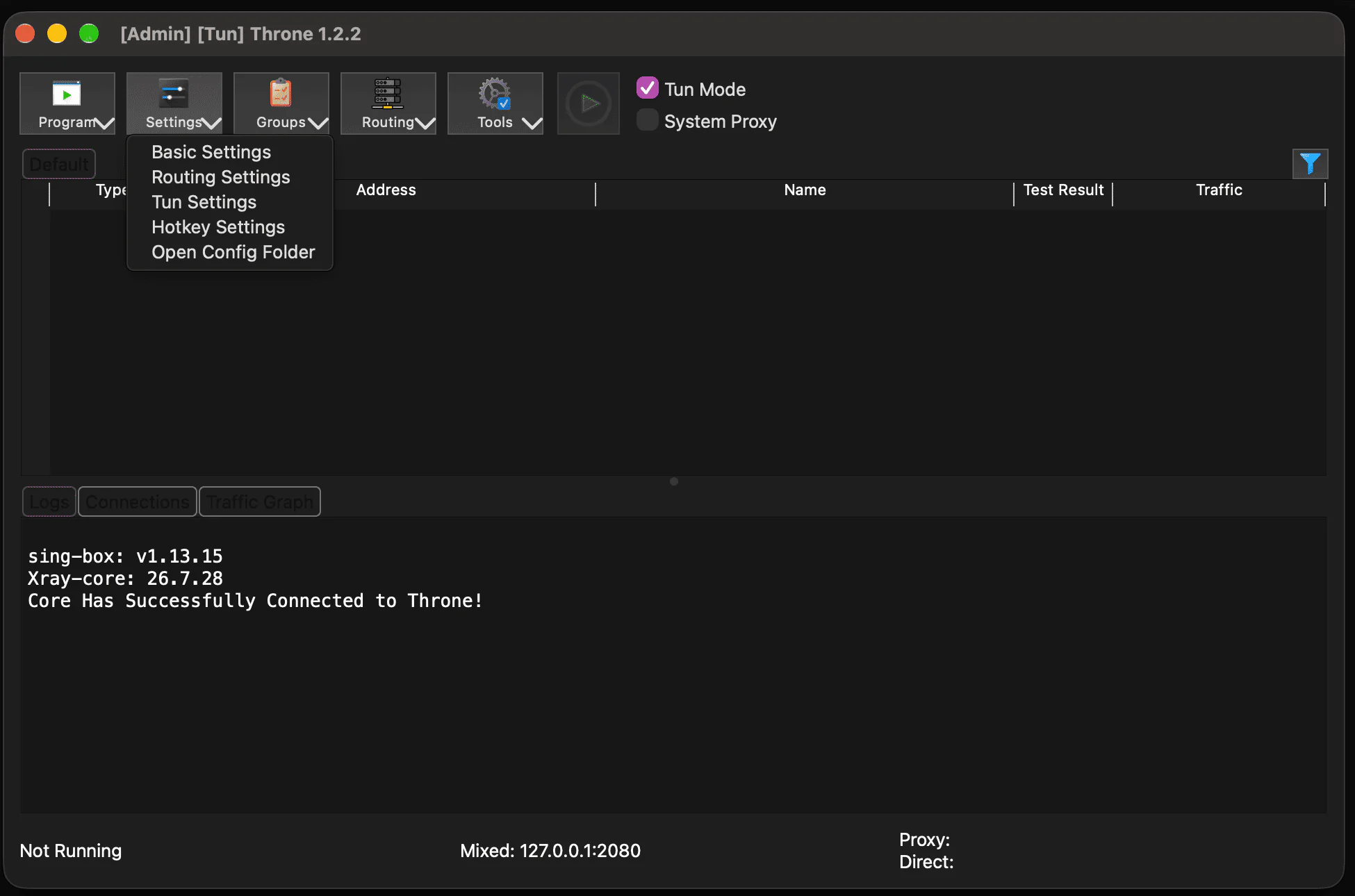
Click to enlarge Enable HWID sending
After adding the subscription, open the app settings:
- in the “Settings” menu, select “Basic Settings”;
- open the “Subscription” tab;
- turn on “Enable sending HWID, device model, and OS version when updating subscription”;
- click “OK”, then update the subscription.
Click to enlarge 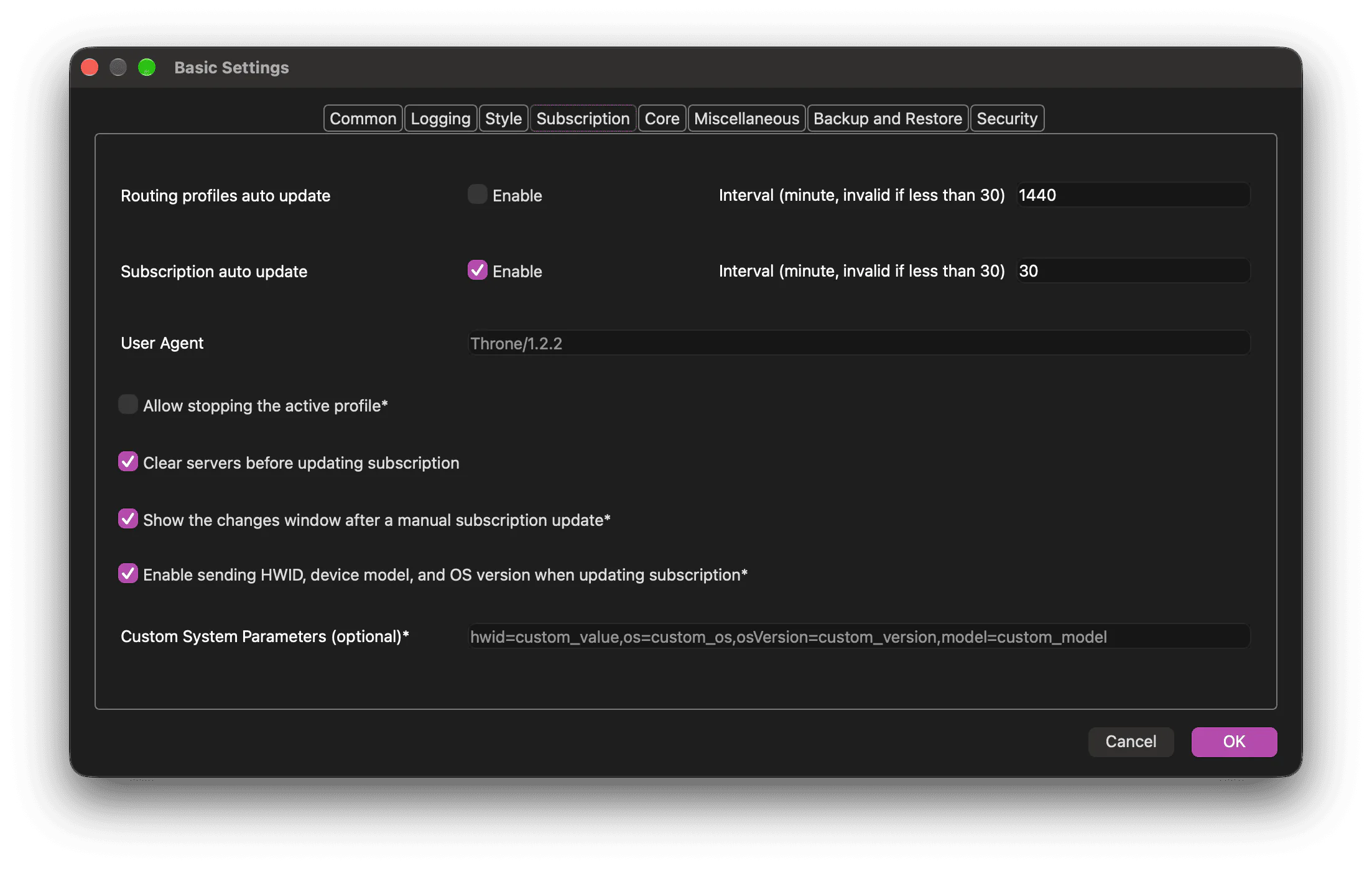
Click to enlarge Connect to a server
Choose a server, keep “Tun Mode” turned on and click the start button.
If macOS asks for the system password or permission to change network settings, confirm the action.

Click to enlarge
Having trouble connecting?
Update the subscription in the app. If that doesn’t help, contact support and tell us your device, app and internet provider or mobile carrier.
Connect using INCY
If the app is already installed, start from step 2.
Install INCY on Mac
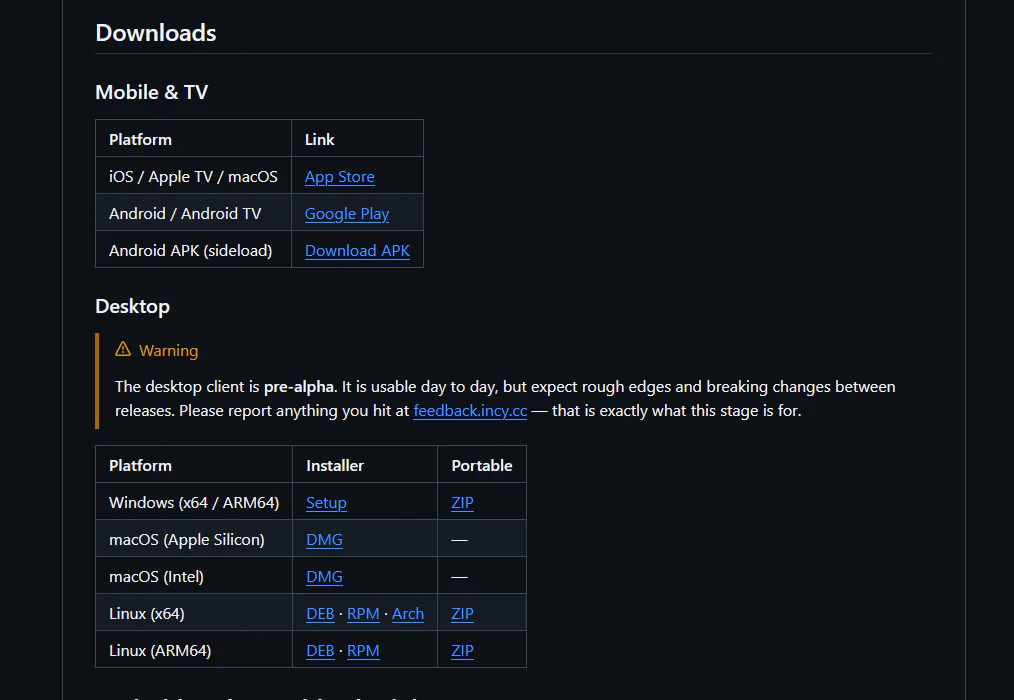
Download the appropriate INCY DMG file for Apple Silicon or Intel from the official repository, install the app and open it.
If macOS asks for permission to open the app, make sure the file was downloaded from the official repository and confirm the action.
Click to enlarge Start the Telegram bot
Open the bot @clown_sbp_bot in Telegram and send the /start command.
Click to enlarge Go to «🔑 Мой доступ» (My access)
After the /start command, select «🔑 Мой доступ» (My access) in the bot menu.
Click to enlarge Copy your connection link
Copy your link in full — you will need it to add the subscription.
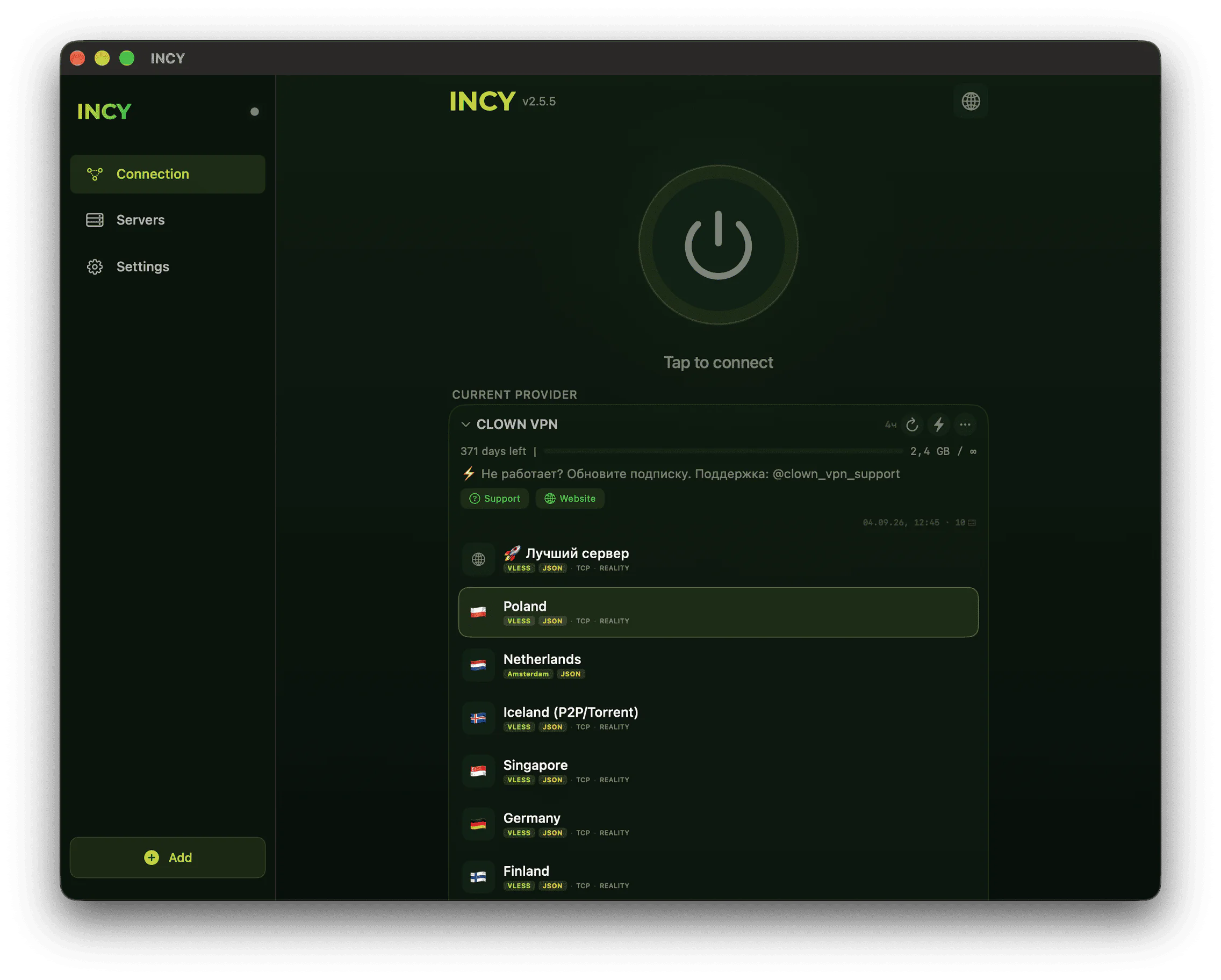
Click to enlarge Add the subscription and choose a server
Go back to INCY and click “Paste” to add the copied link.
- wait for the CLOWN VPN subscription and the server list to appear;
- choose the location you want;
- click the large connect button.
The first time you connect, confirm the macOS system prompt to add a VPN configuration.
Click to enlarge
Having trouble connecting?
Update the subscription in the app. If that doesn’t help, contact support and tell us your device, app and internet provider or mobile carrier.